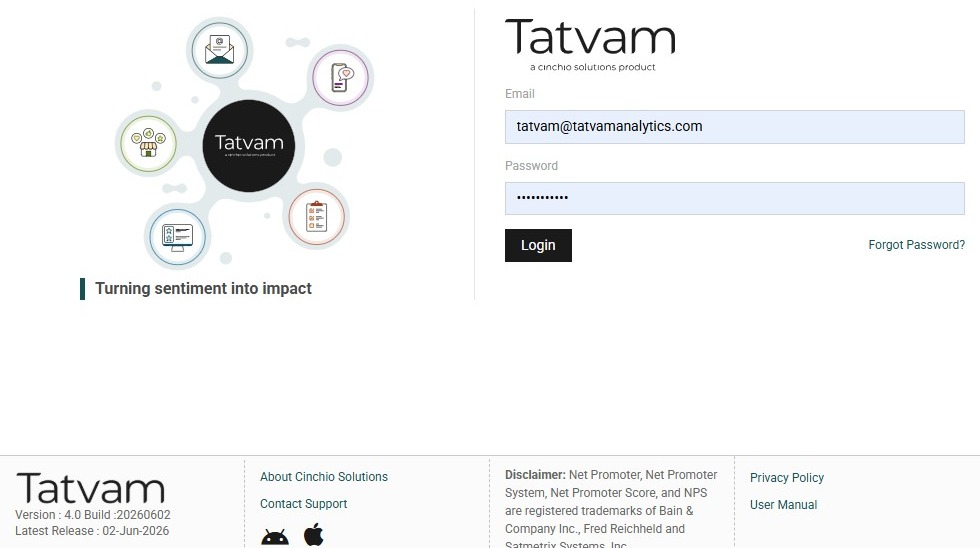
1. Navigate to https://live.tatvamanalytics.com/login
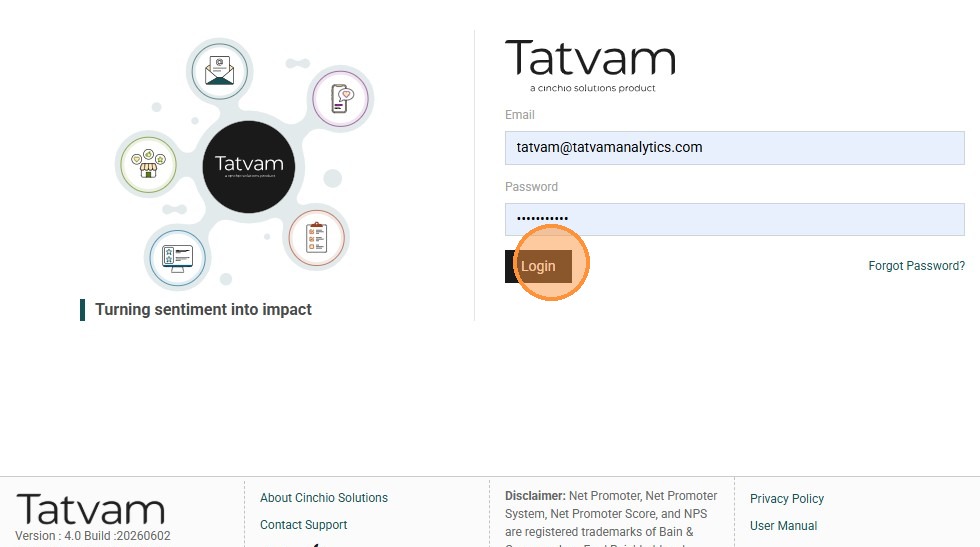
2. Click "Login"
3. Click "Survey Designer"
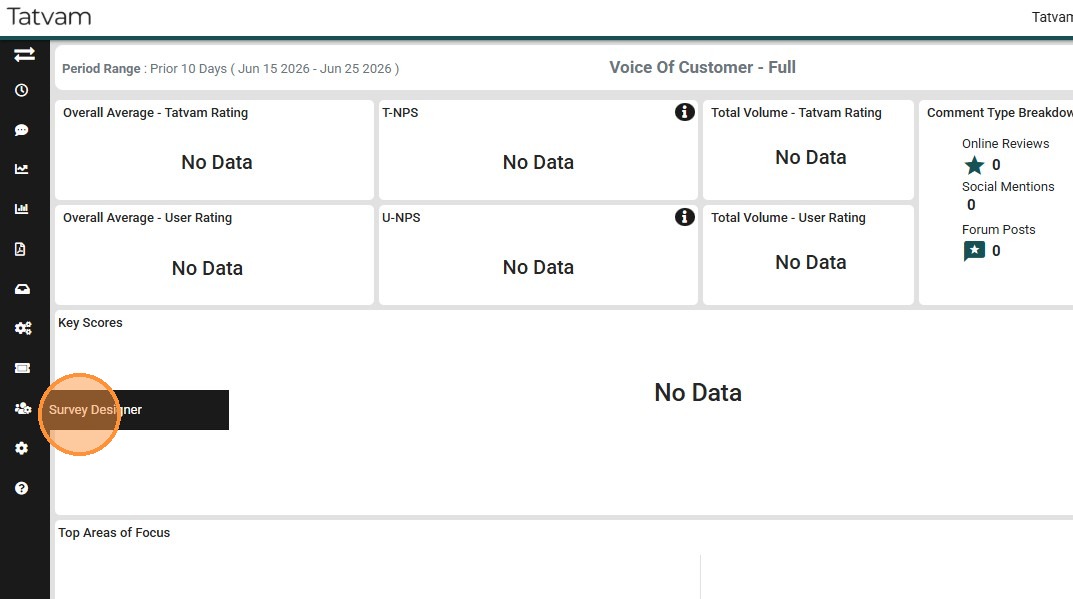
4. Click & Open "Survey Management" menu
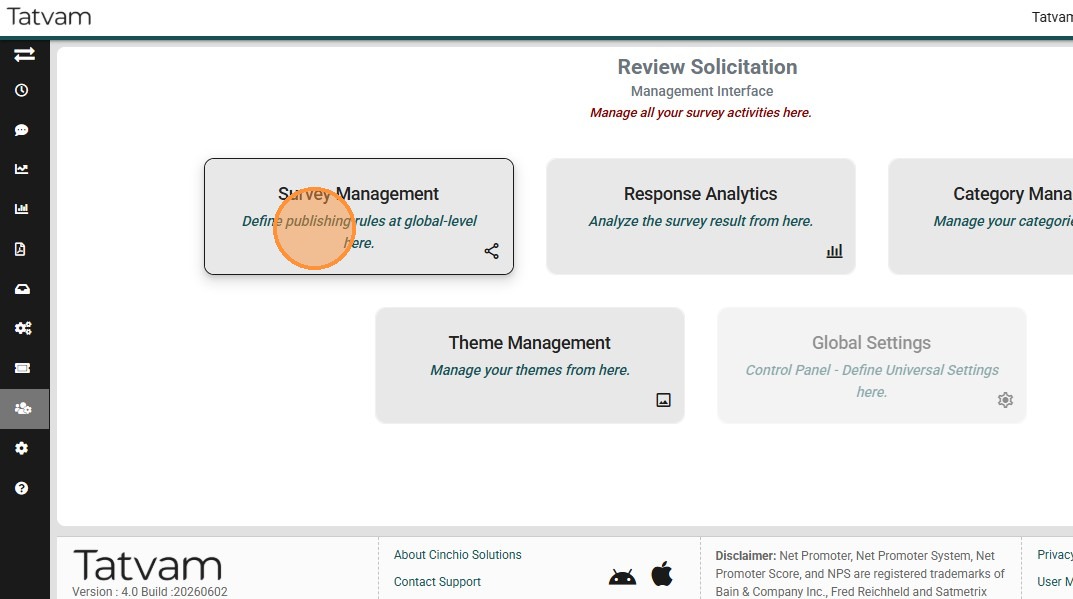
5. Click "Add Survey"
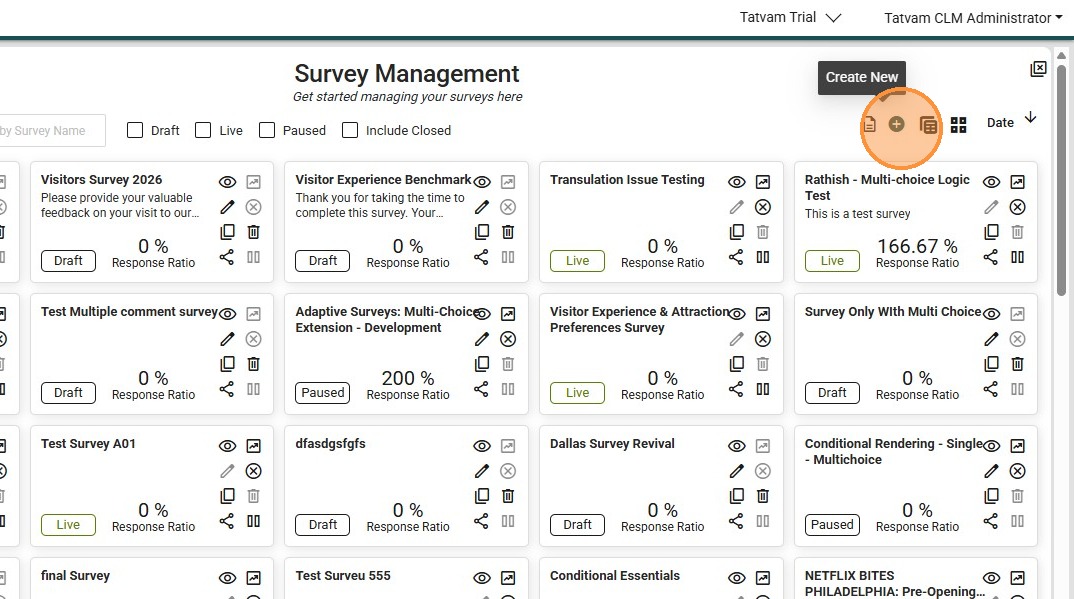
6. Click the "Title" field.
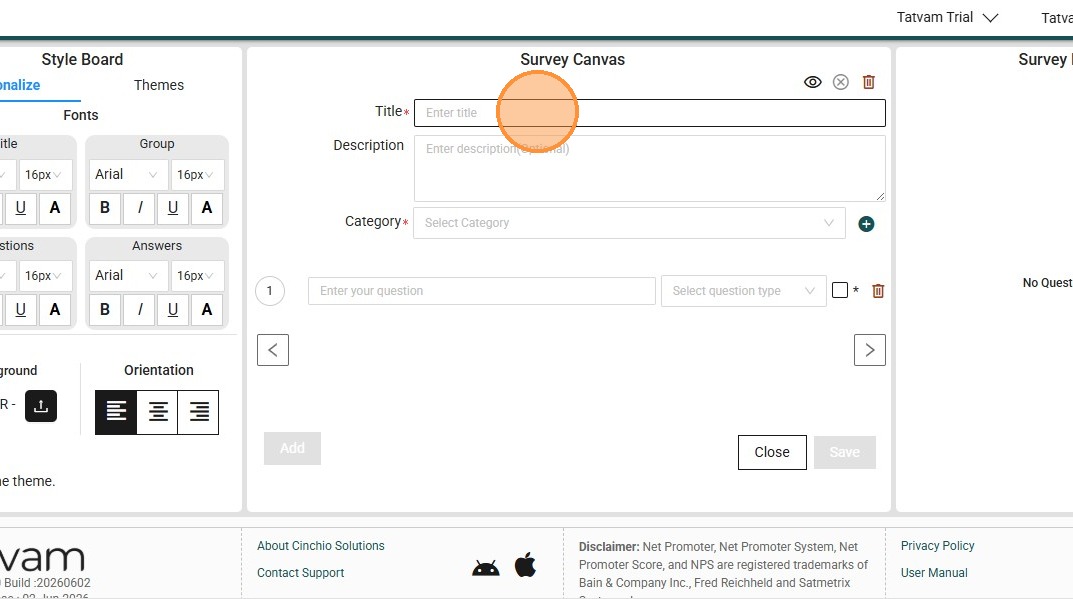
7. Type the preferred name for your survey, like "Customer Experience Survey 2026"
8. Click the "Description" field.
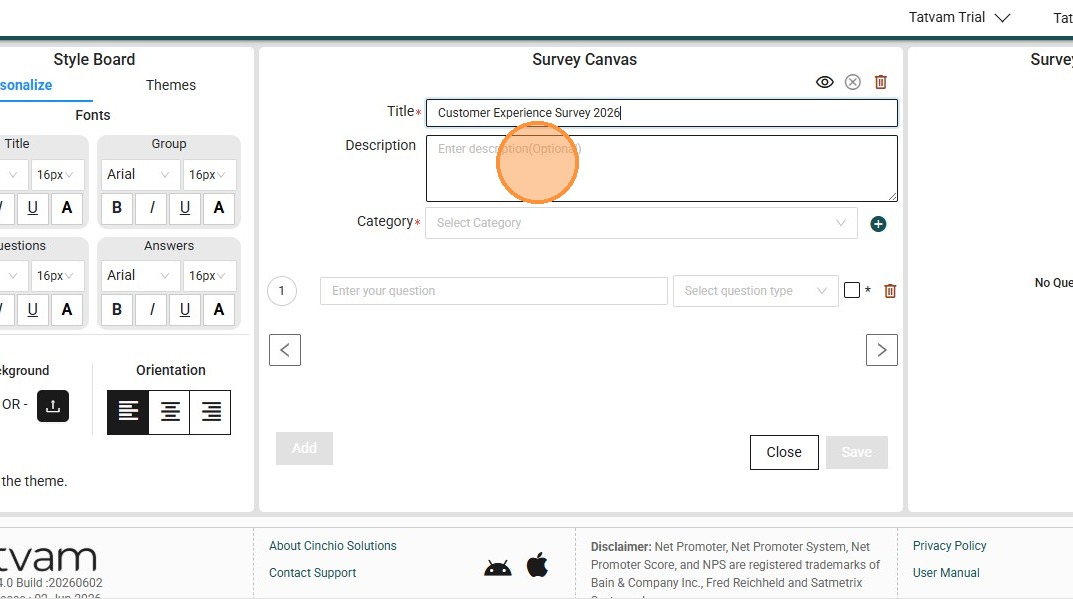
9. Type the preferred description for your survey, like "Please provide your valuable feedback."
10. Click the "Category" field.
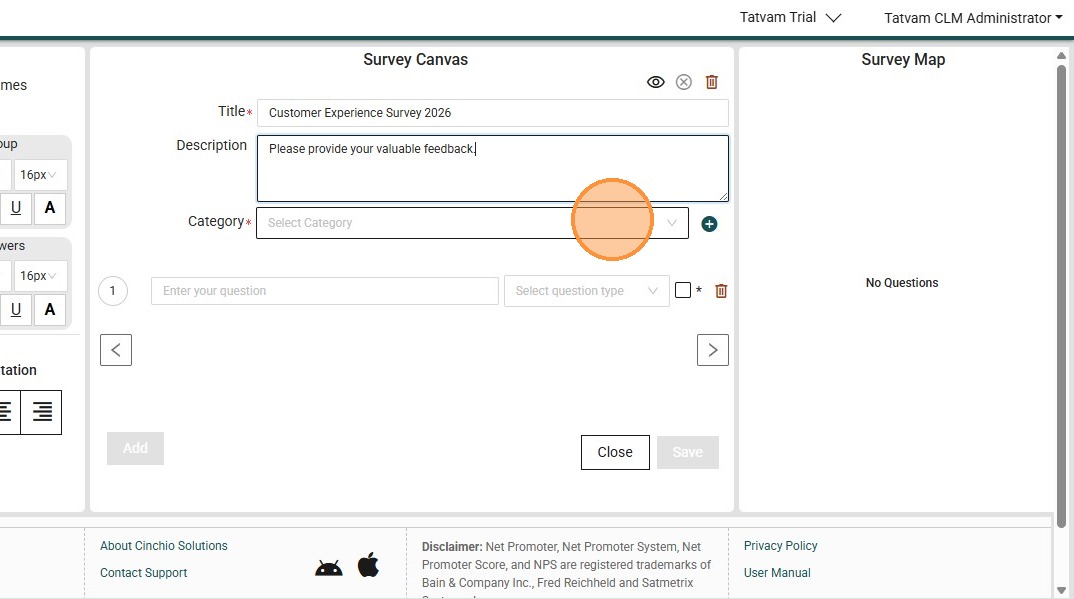
11. Click "Add Category"
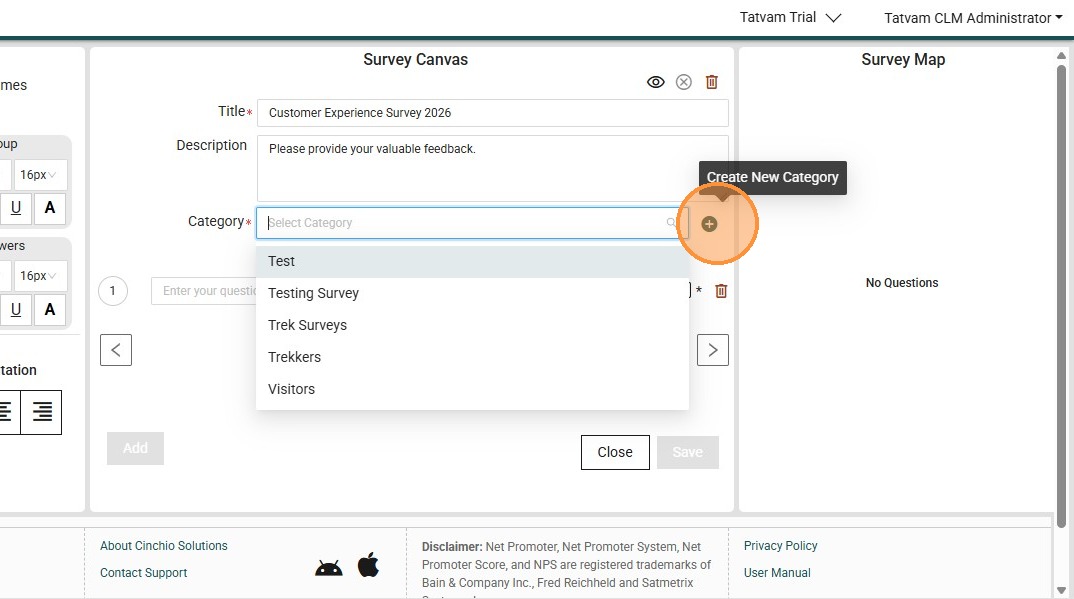
12. Click the "Category Name :" field.
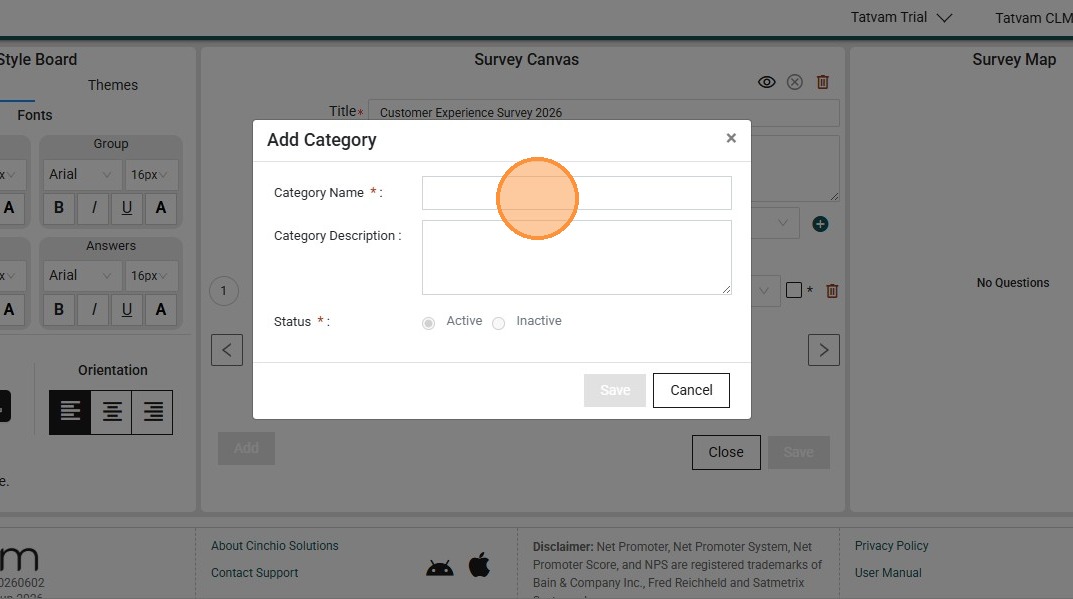
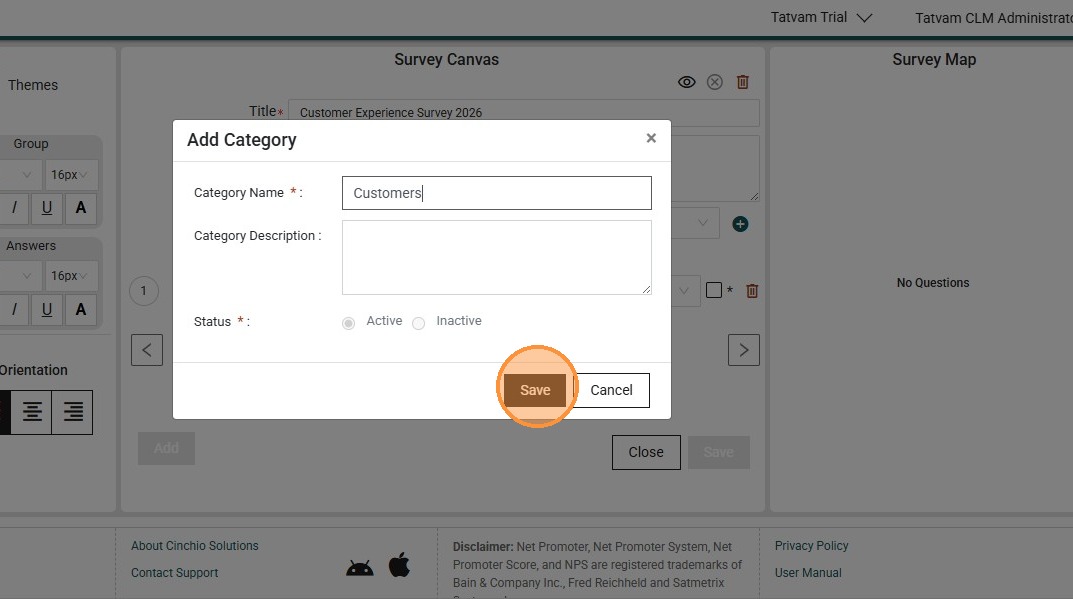
13. Type the preferred category name "Customers"
14. Click "Save"
15. Click this response type field.
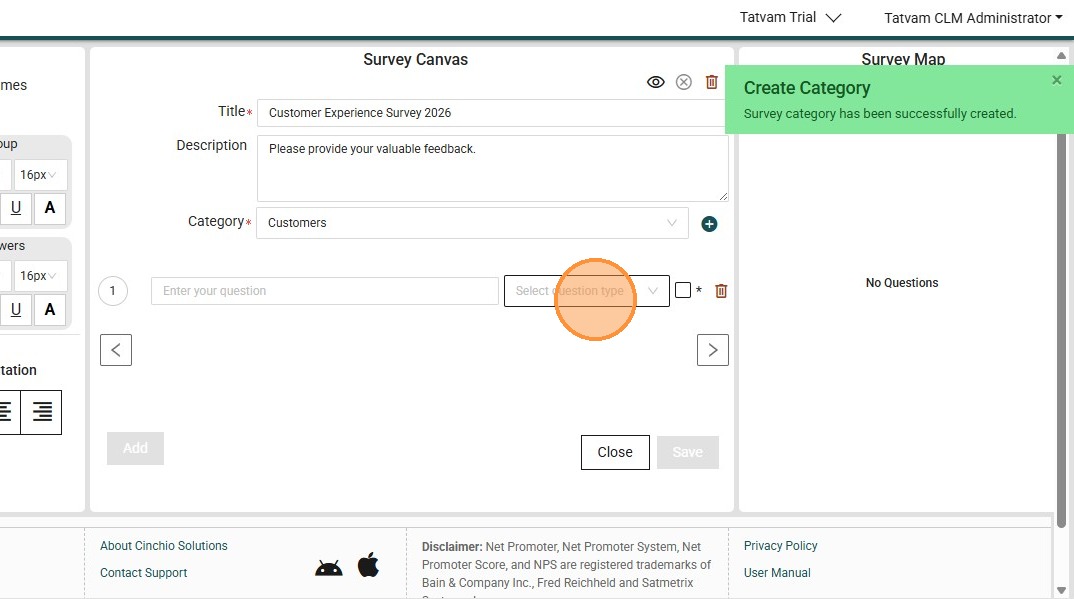
16. Click "Name"
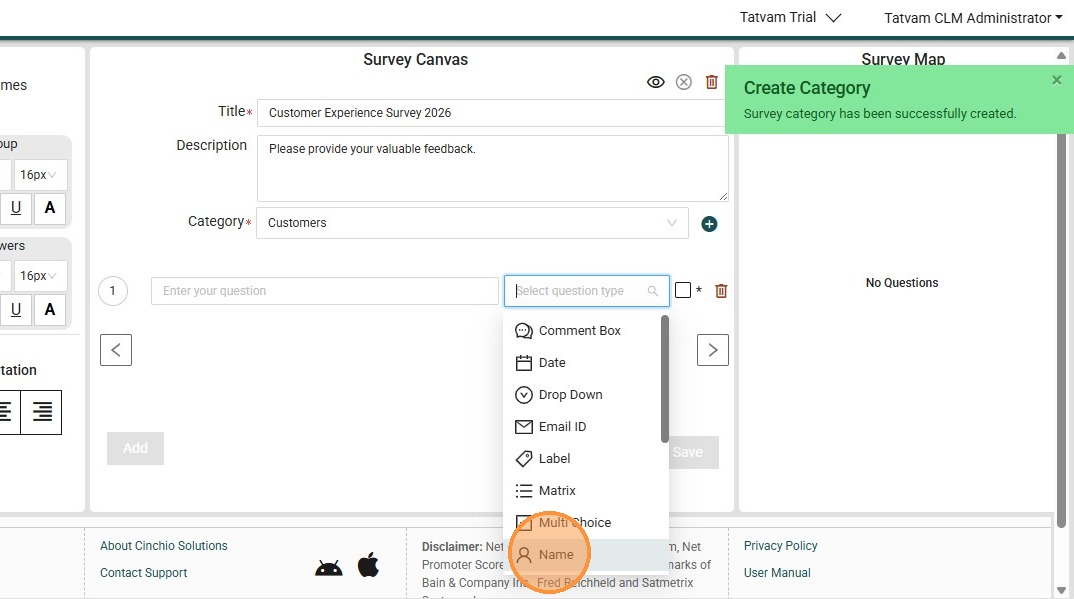
17. Click "Enter your question" field.
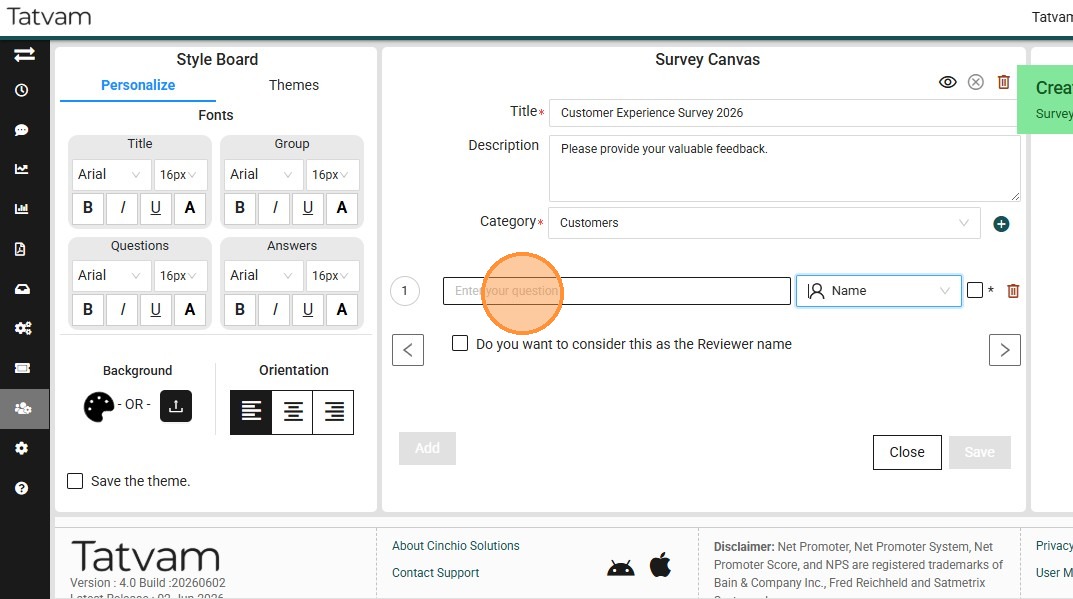
18. Type in the preferred question - "What is your name"
19. Click the "*" field to mark it as mandatory
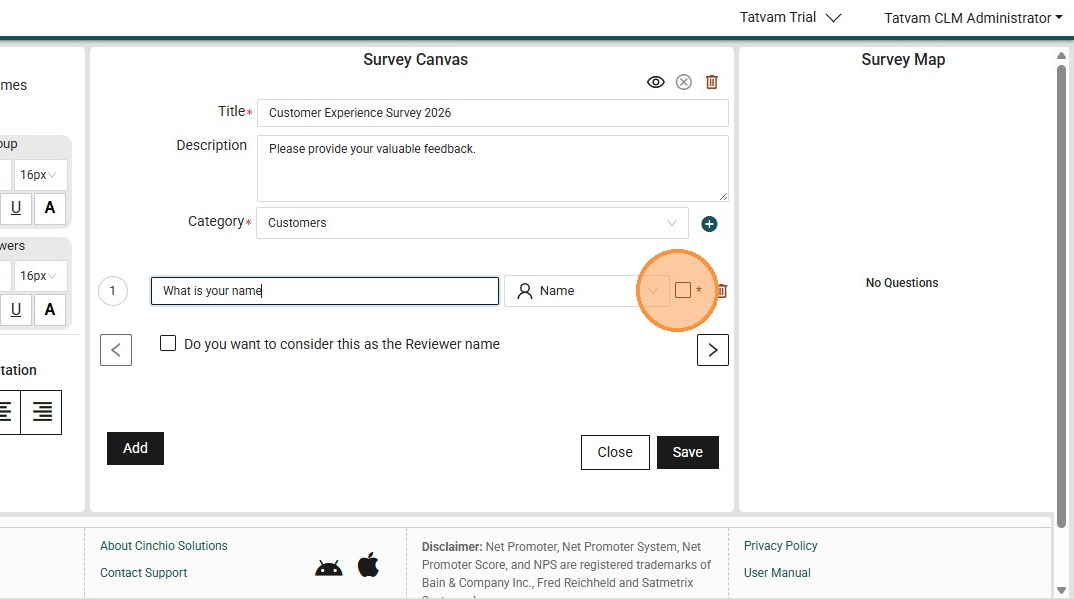
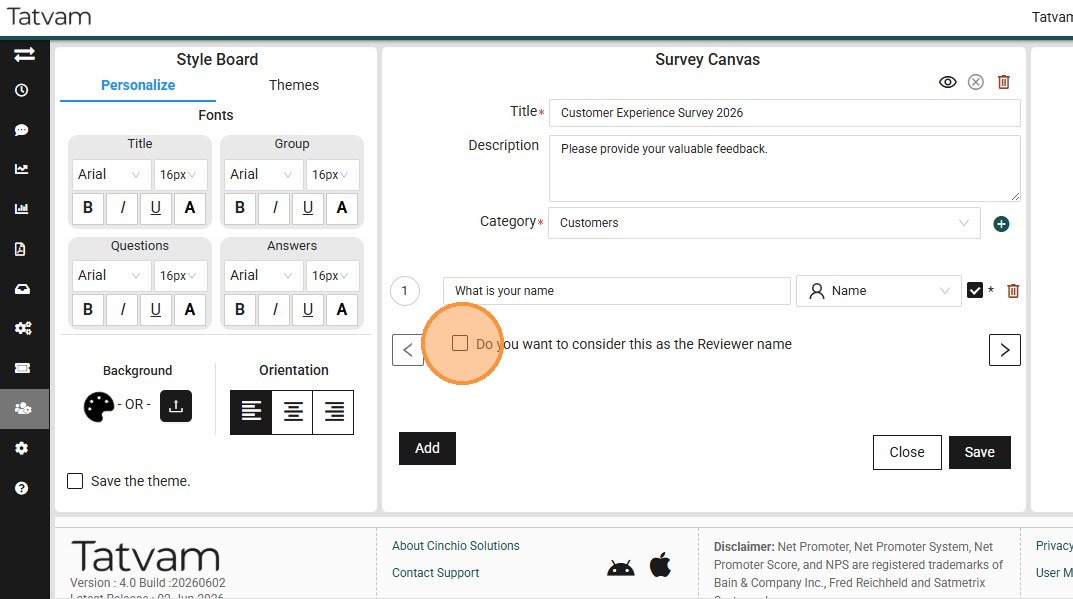
20. Type the preferred question as "Do you want to consider this as the Reviewer name" field.
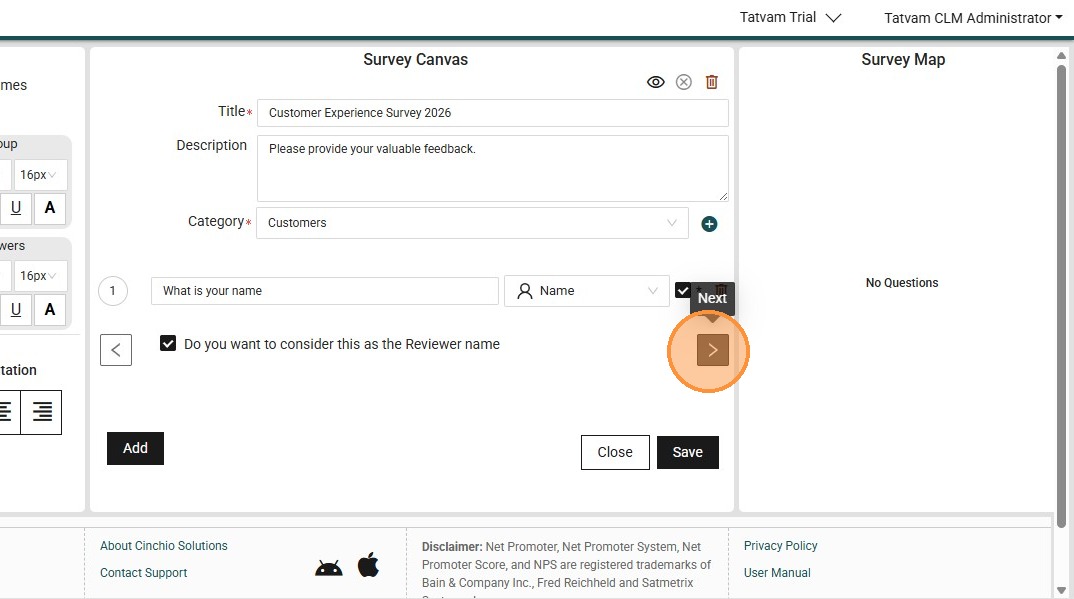
21. Click this icon to type in the next question.
22. Click the "Enter your question" field.
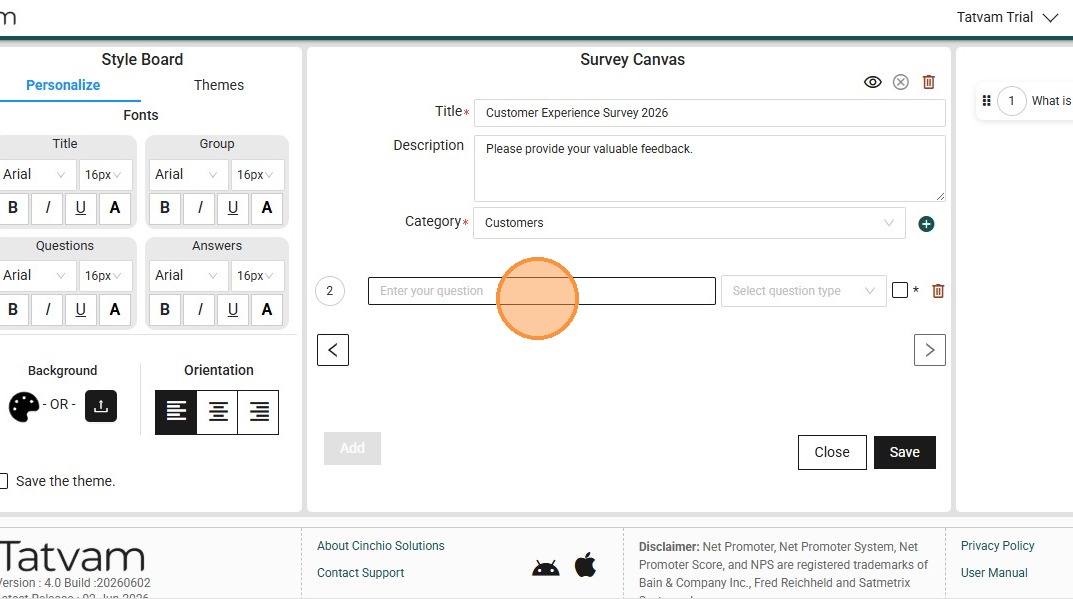
23. Type the preferred question "Please comment on your overall experience"
24. Click this response type field.
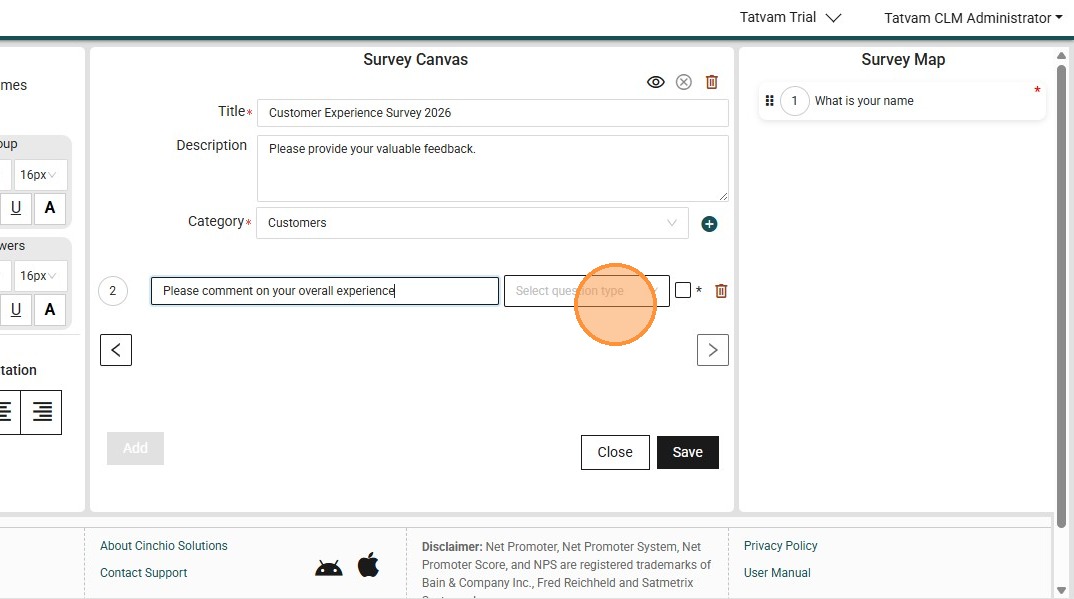
25. Select "Comment Box"
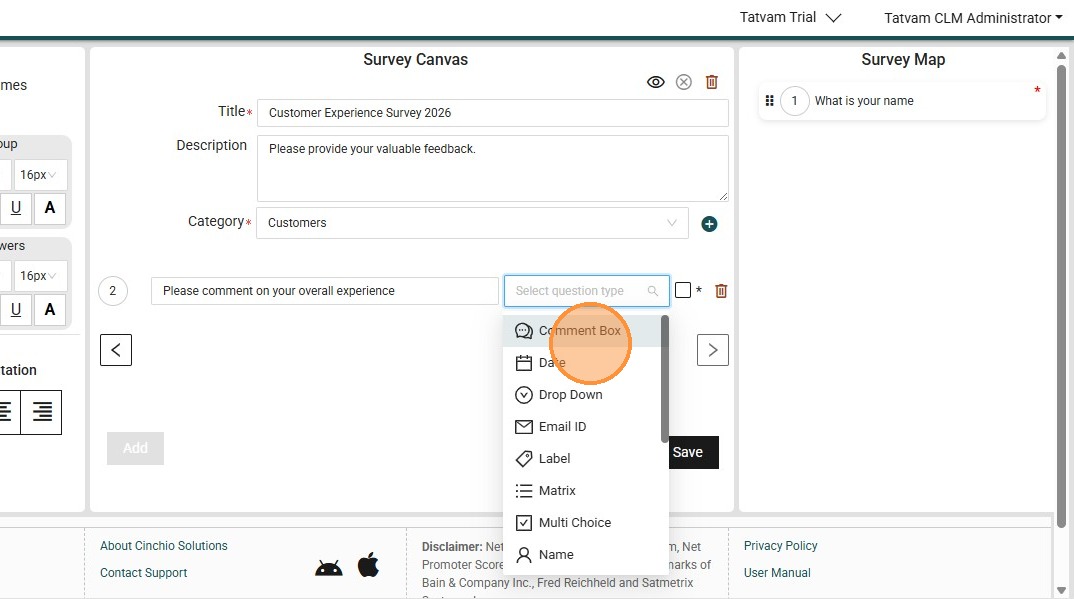
26. Click the "*" field to mark it as mandatory.
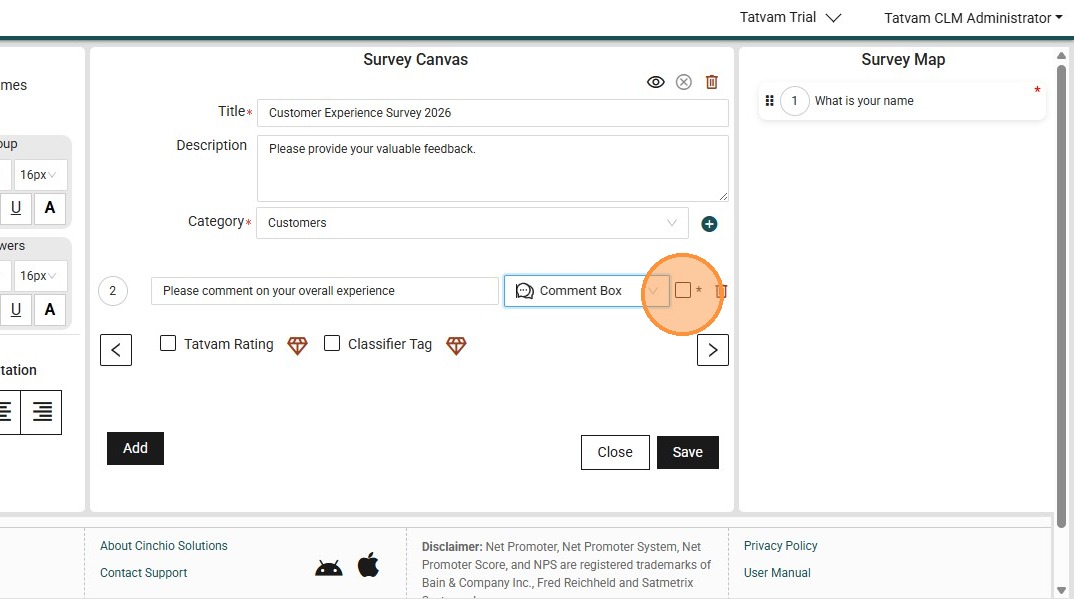
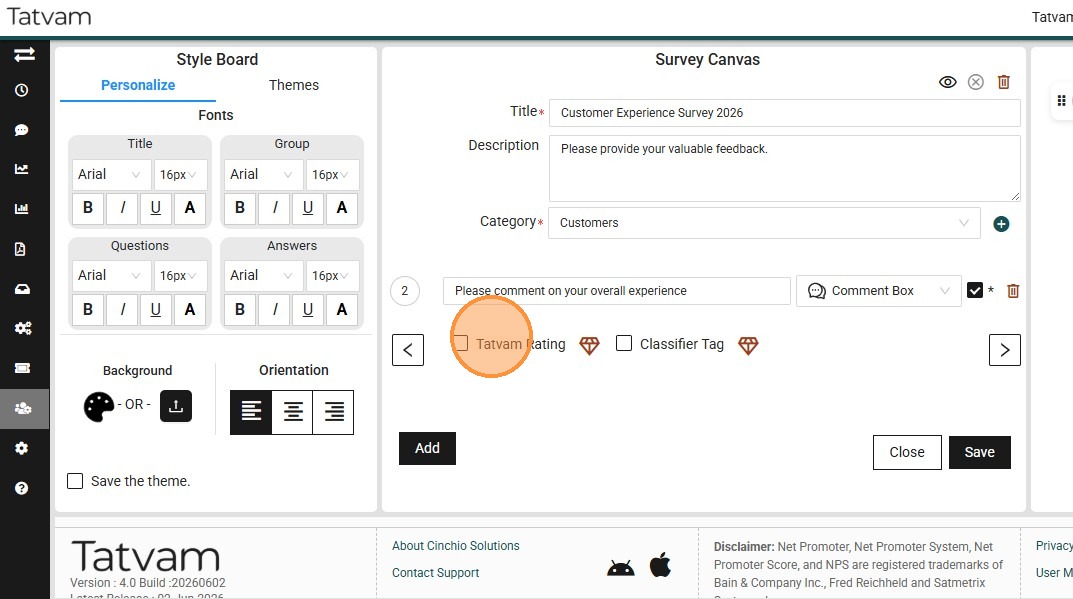
27. Select "Tatvam Rating" if you want this comment to be considered for sentiment analysis
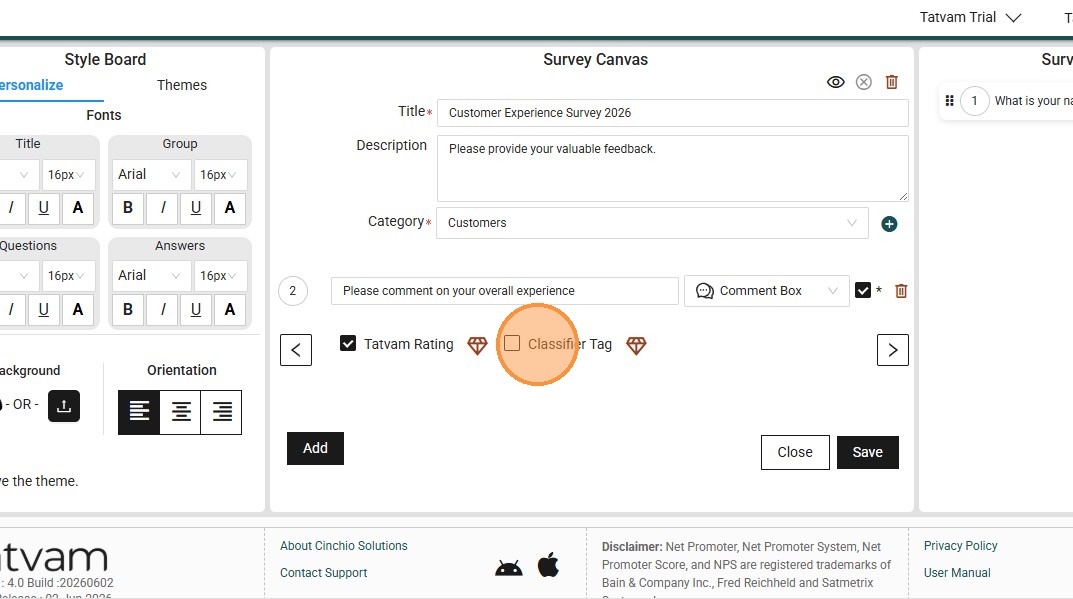
28. Click "Classifier Tag", if you prefer the classifier tagging to be considered for this question
29. Click this icon to type the next question.
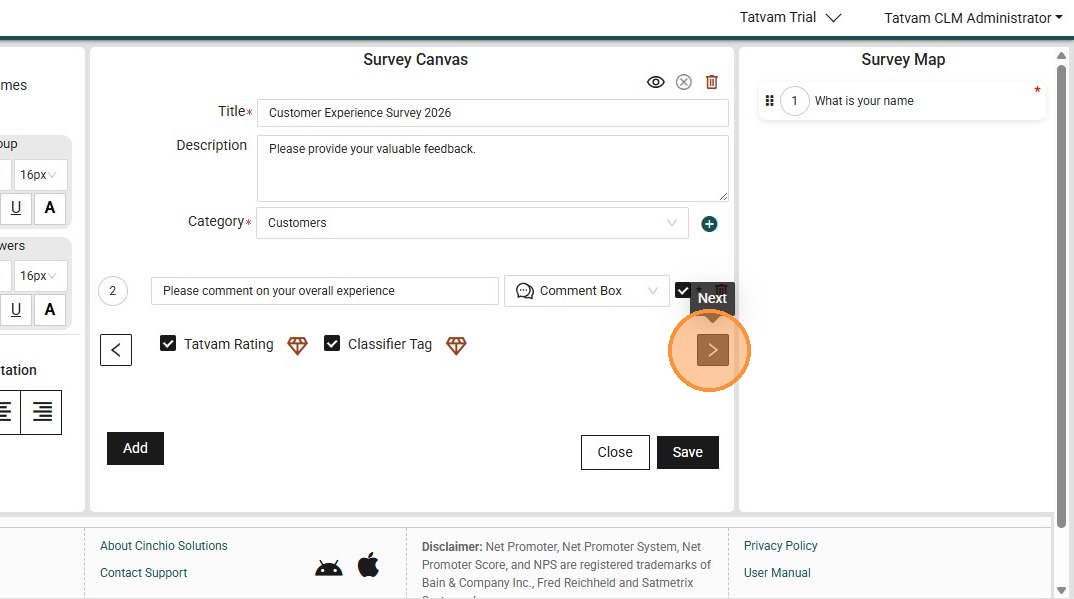
30. Click the "Enter your question" field.
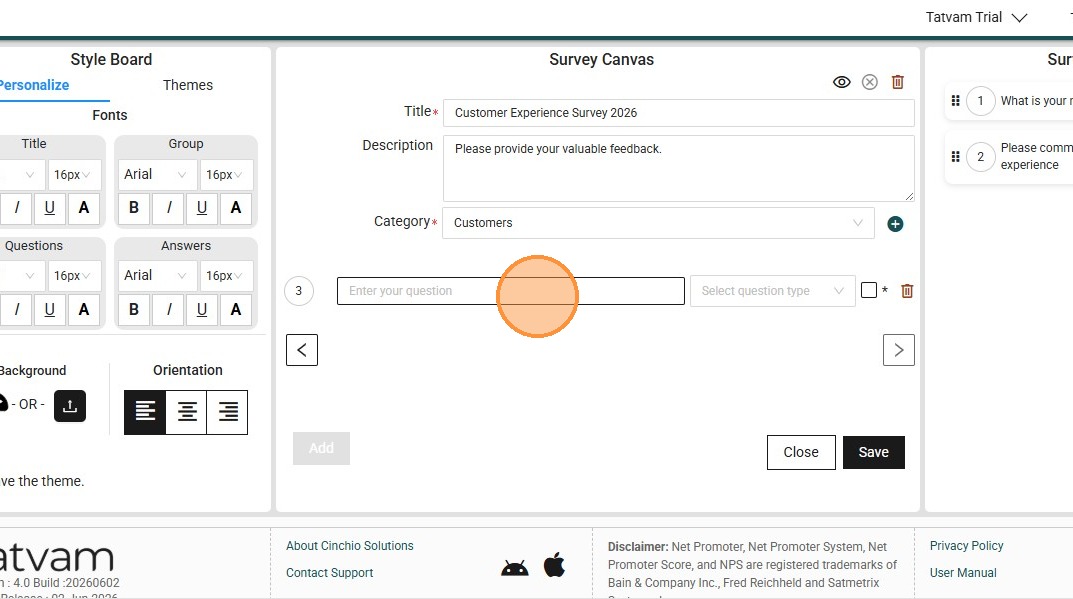
31. Type the preferred question like, "Please rate your overall experience"
32. Click "Select question type"
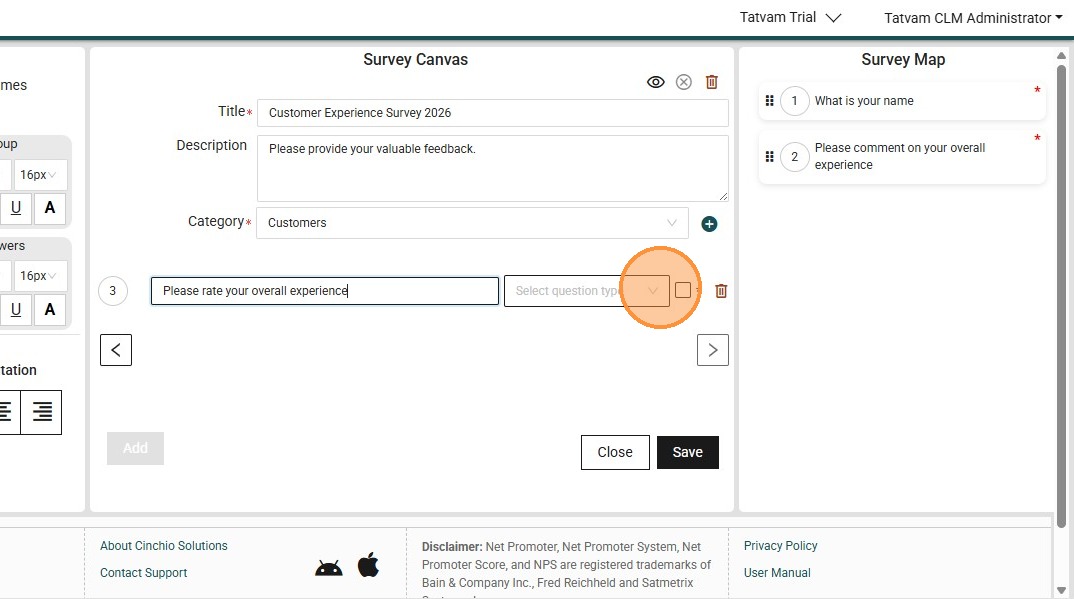
33. Select the preferred response type, like 'Star rating'
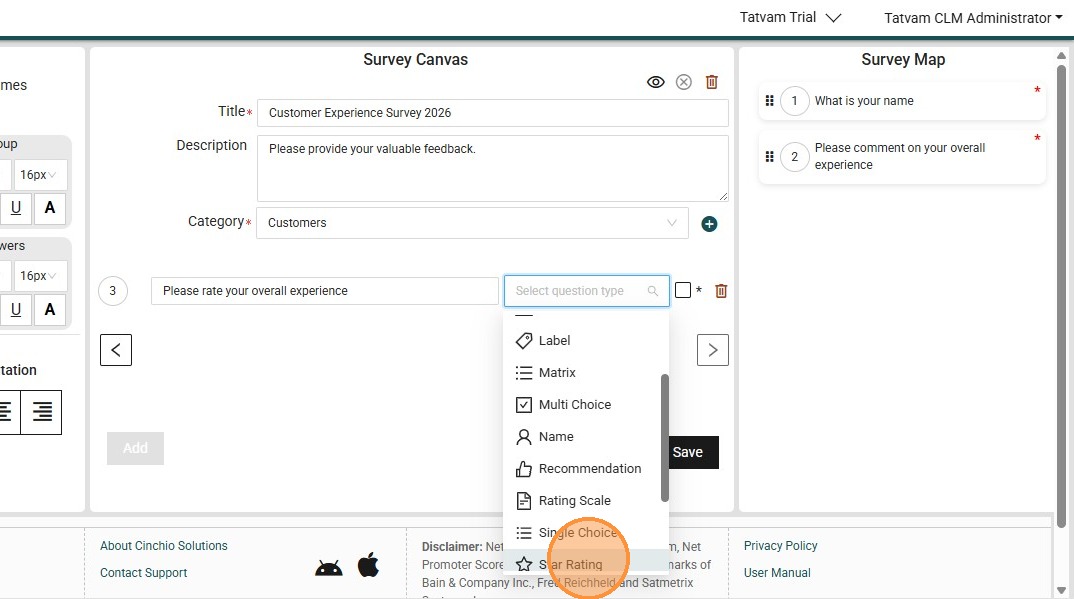
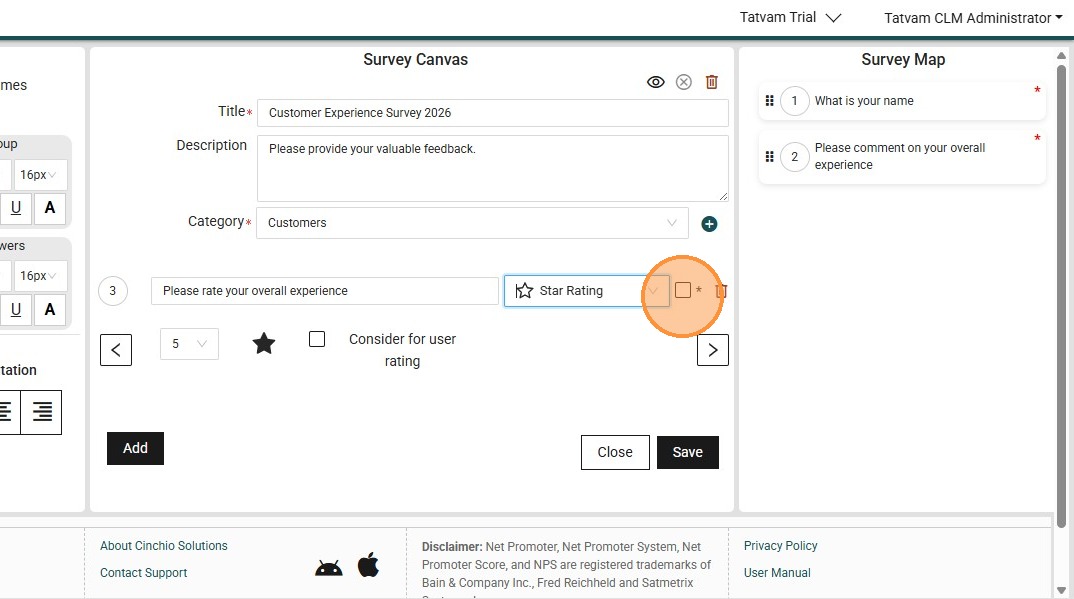
34. Click the "*" field to mark as mandatory
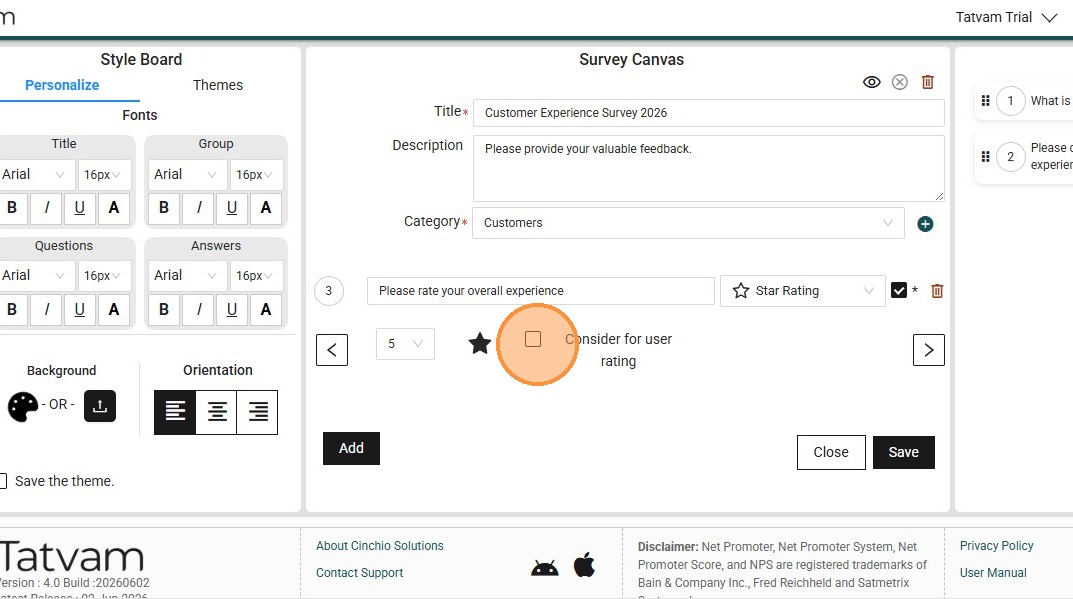
35. Click the "Consider for user rating" field, if you prefer this question to be considered for user rating
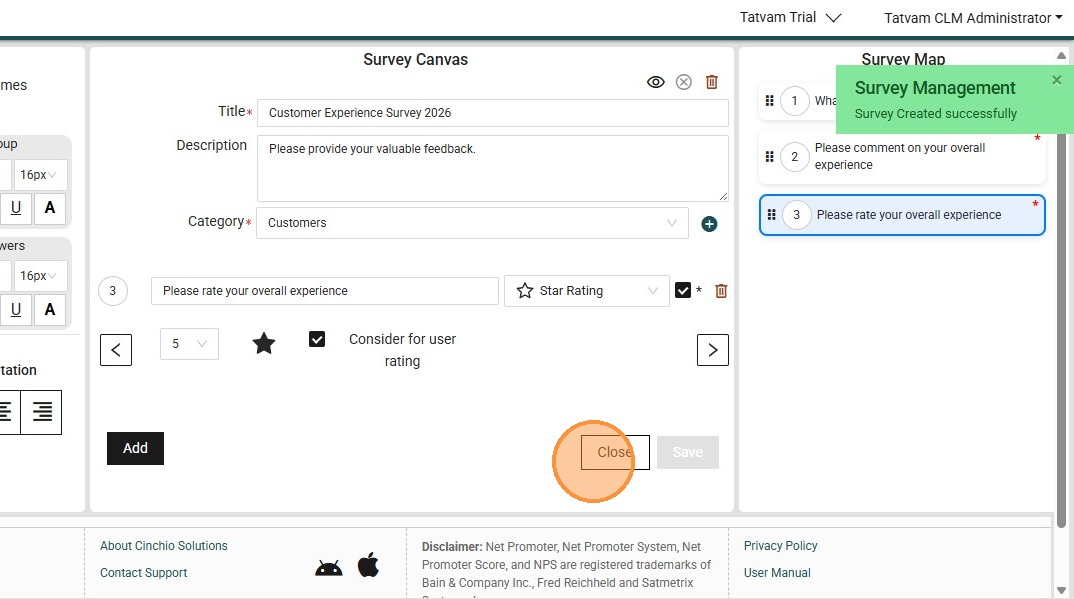
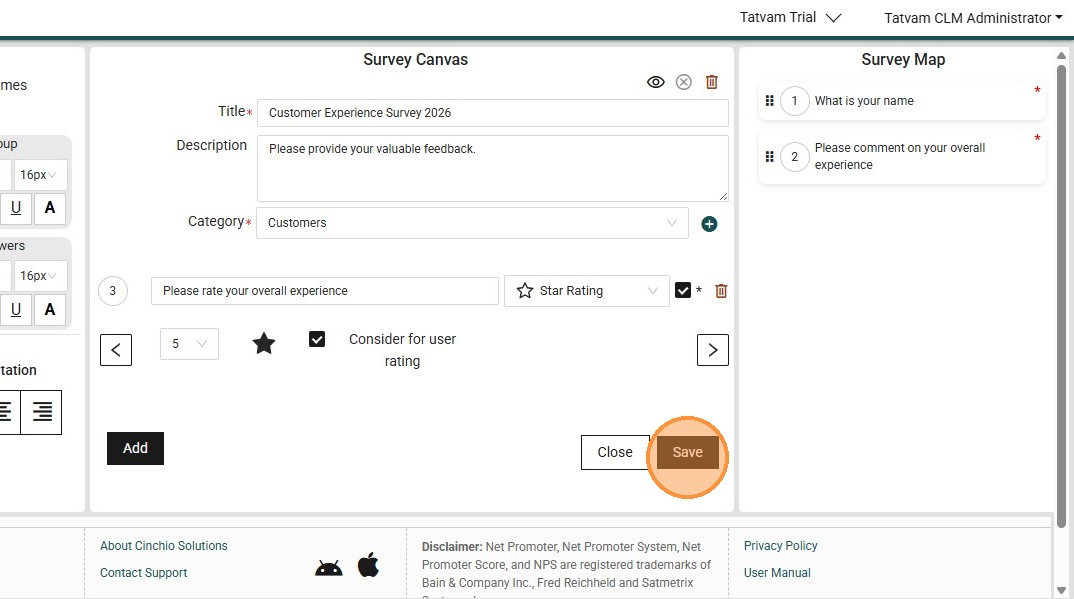
36. Click "Save", if you are done with the survey.
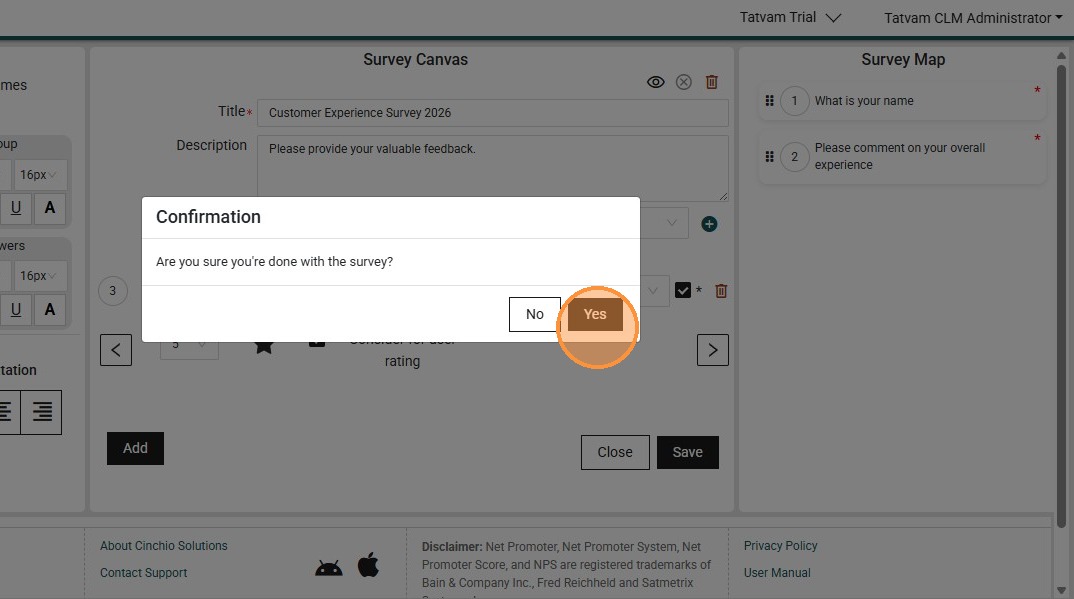
37. Click "Yes"
38. Click "Close"