Alert: Alert! Response Templates are only available when Tatvam is connected through an API to Google, Facebook, or X, formerly known as Twitter.
To confirm your connection, visit the Feeds page in Tatvam and look for a Reply button on the right side beneath the flag icon on a review from each source. If the Reply button does not appear for these sources, your account is not currently connected through the API.
For assistance or additional information, please contact tatvamsupport@cinchio.com.
Tip: Tip! Response templates should support your reply, not replace personalization. Always customize the beginning of your response to address the guest’s specific feedback, then use the template to help close the message consistently. Using the exact same response for every review can feel impersonal and disingenuous.
To Create a Template
1. Navigate to https://live.tatvamanalytics.com/login
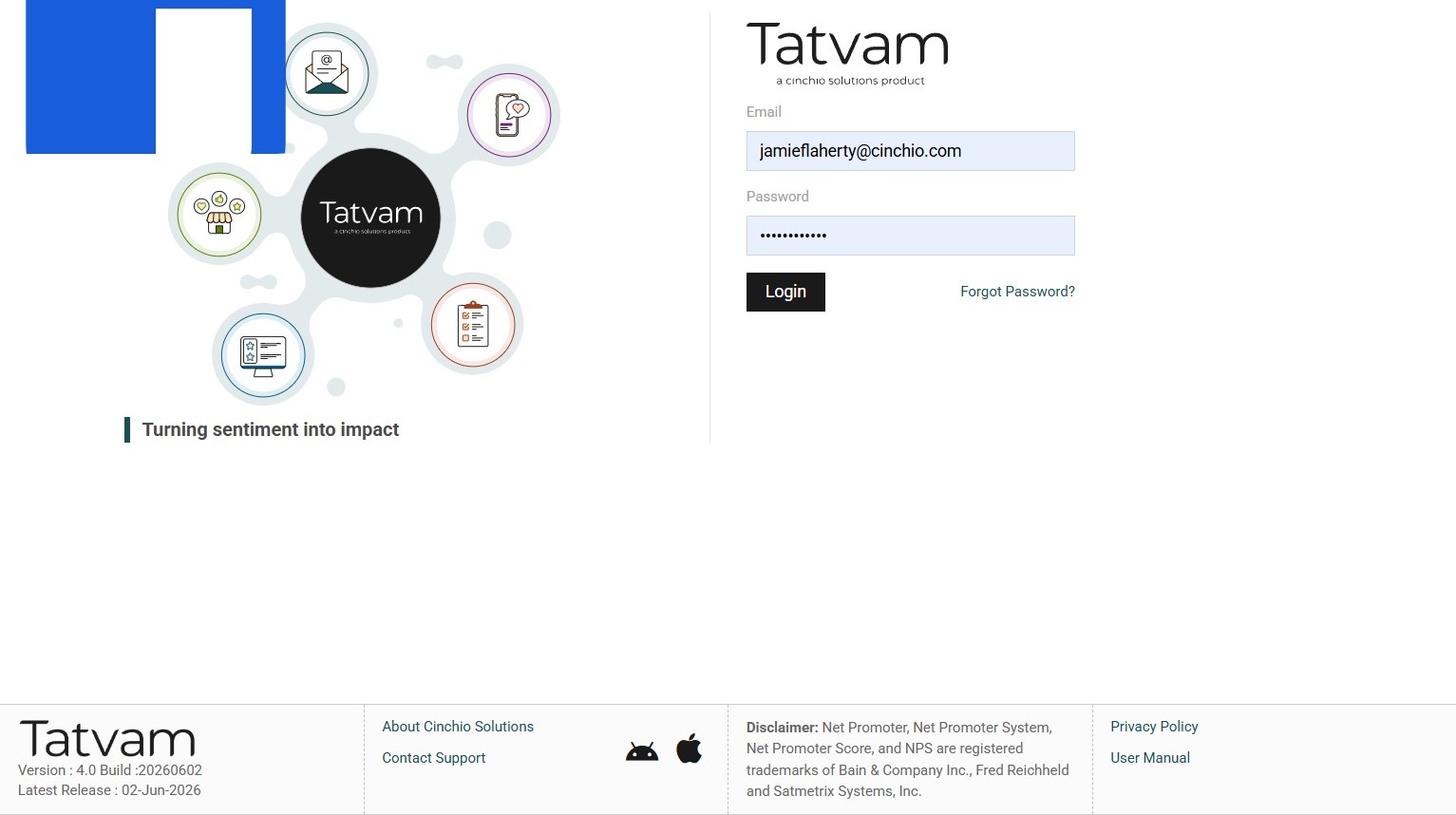
2. Enter your email address
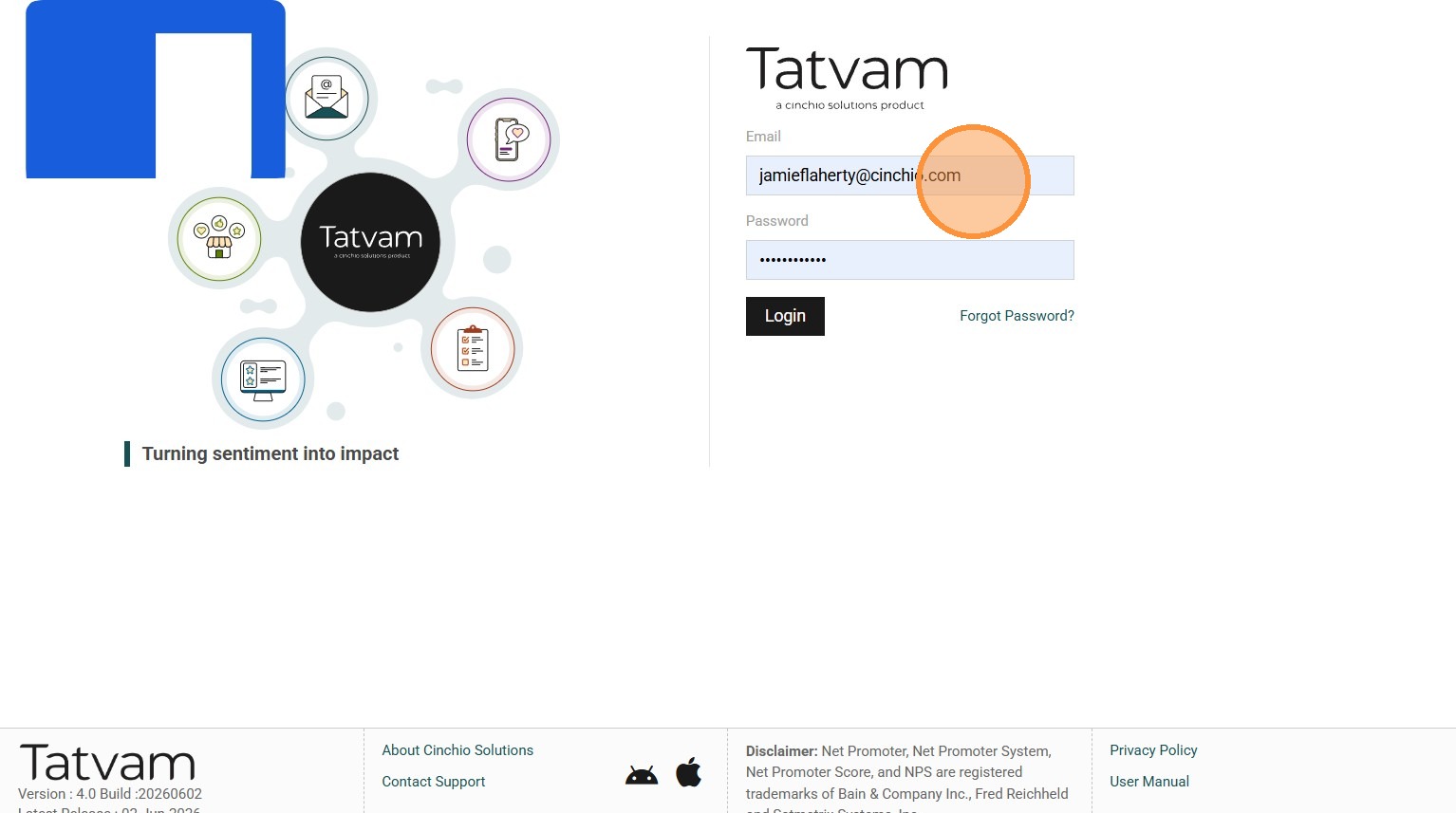
3. Enter your password
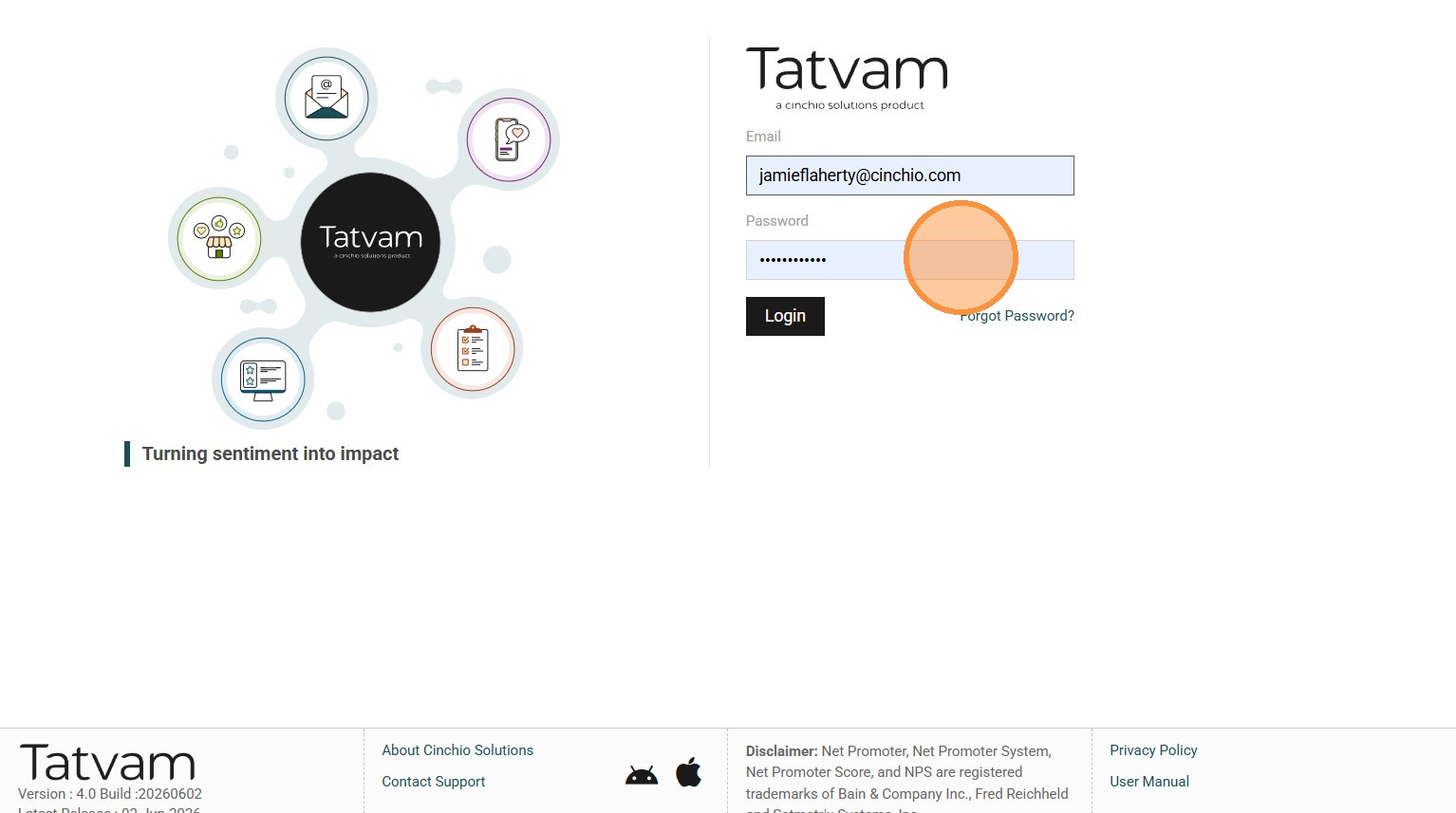
4. Click "Login"
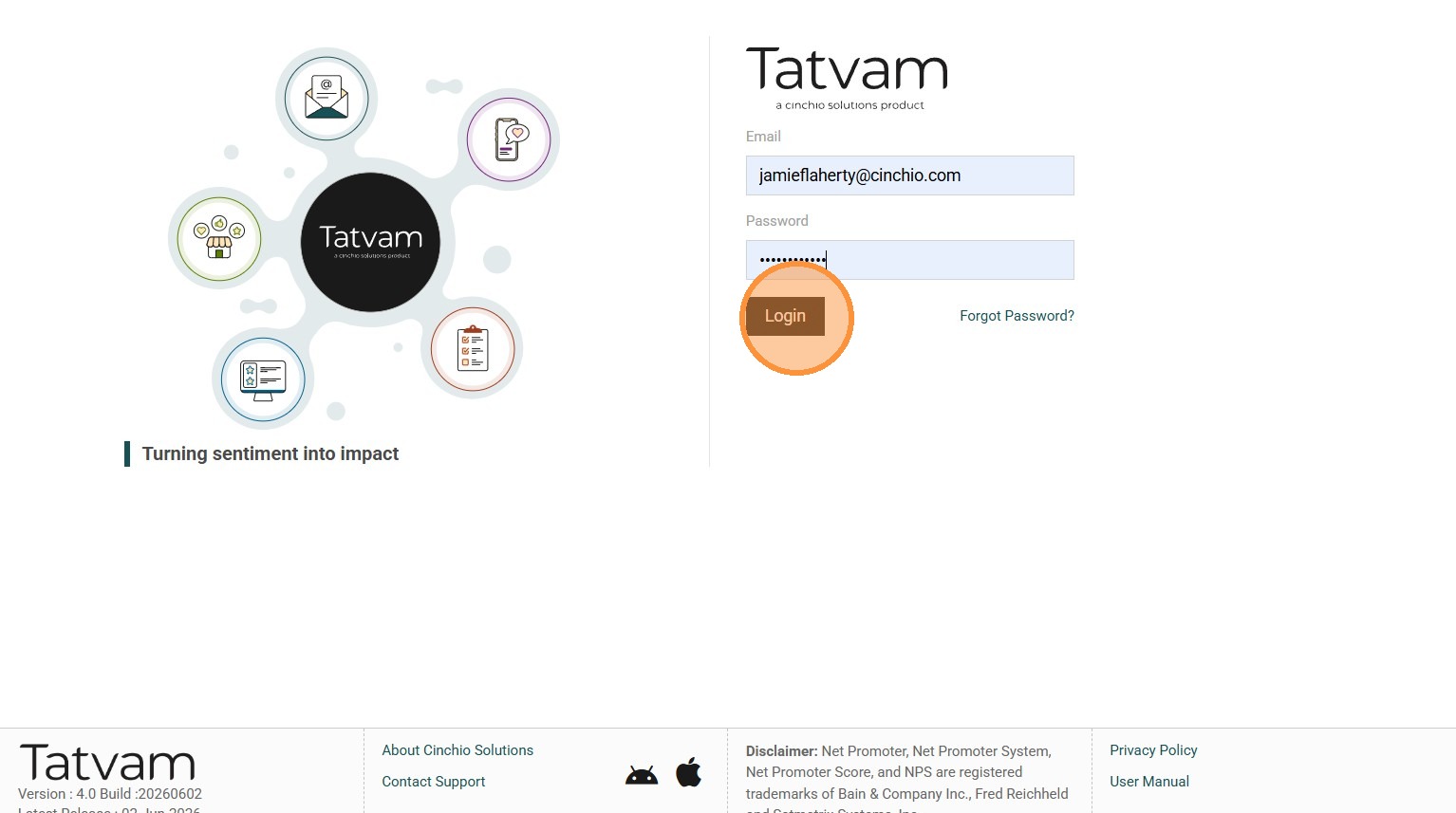
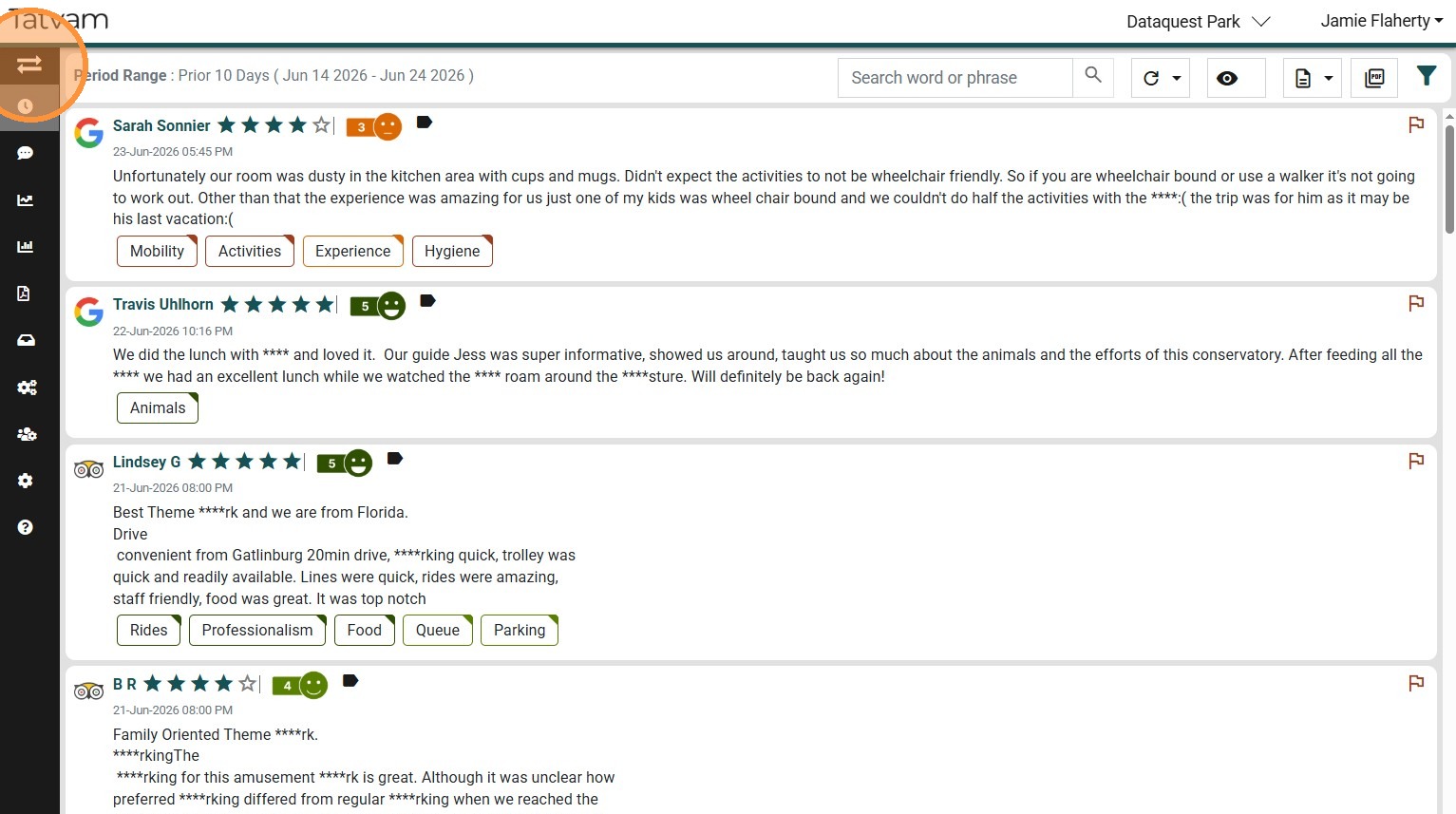
5. Click here to expand the left navigation menu
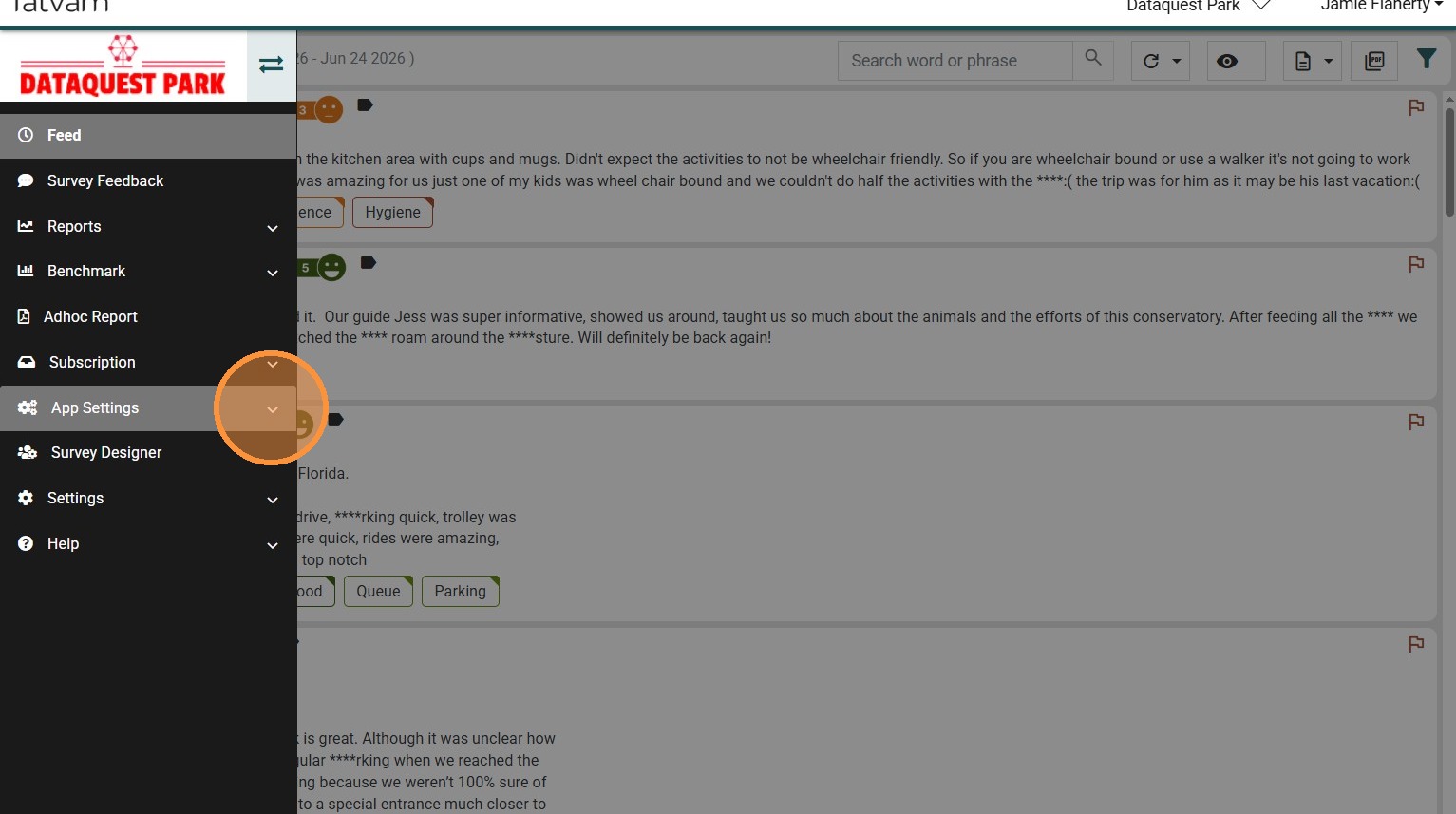
6. Click "App Settings"
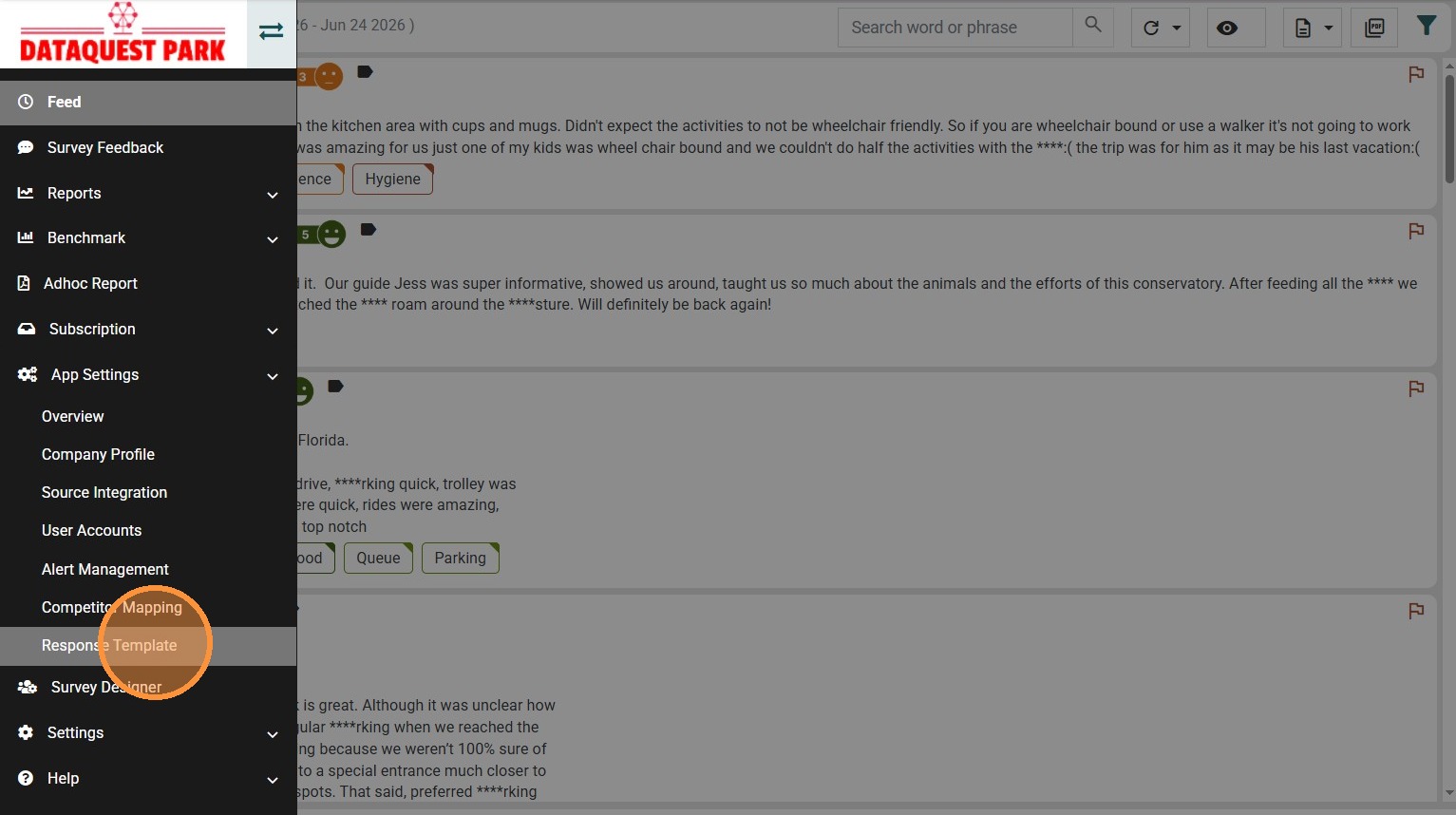
7. Click "Response Template"
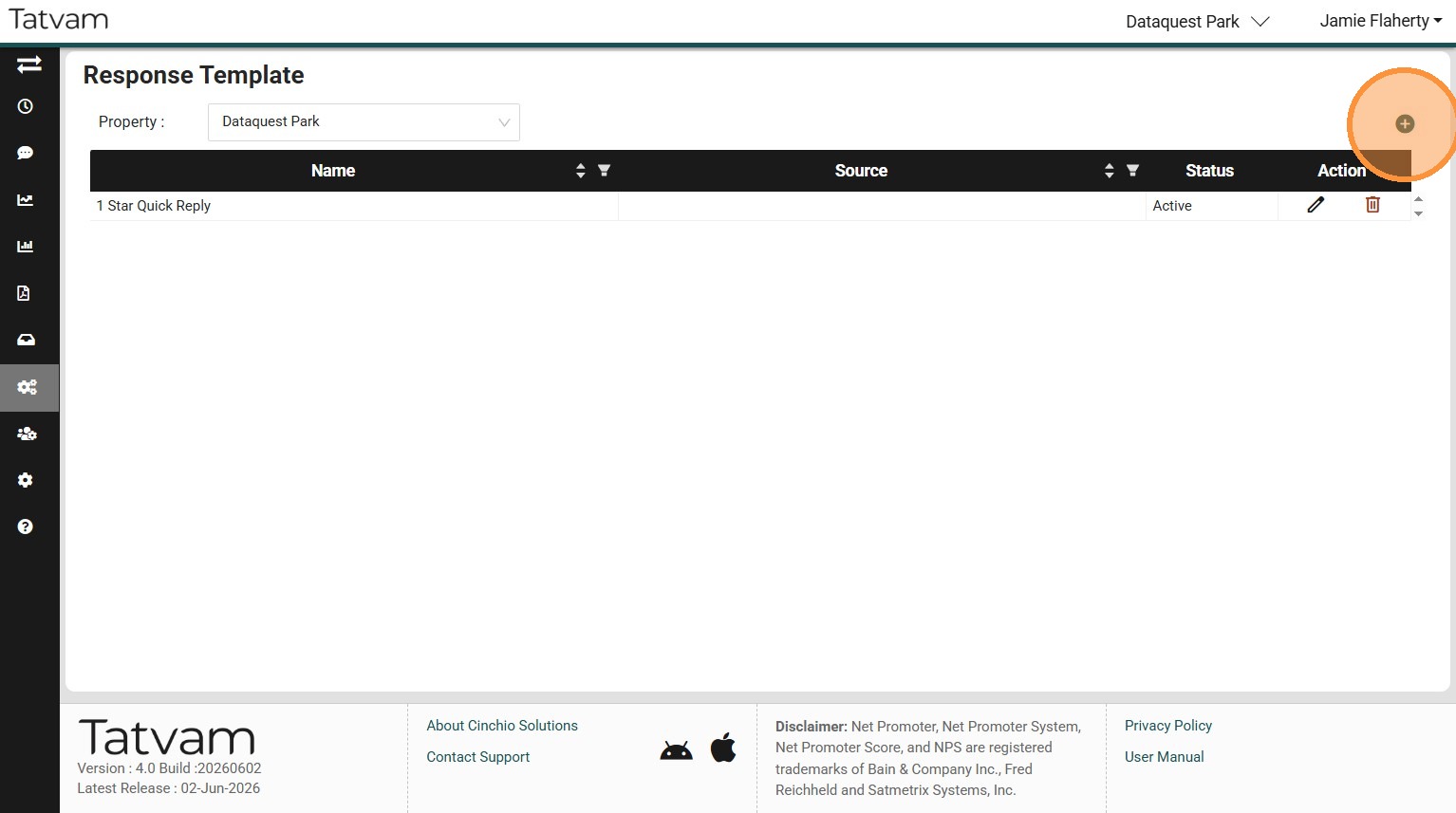
8. Click the "Add Circle" to create a new response
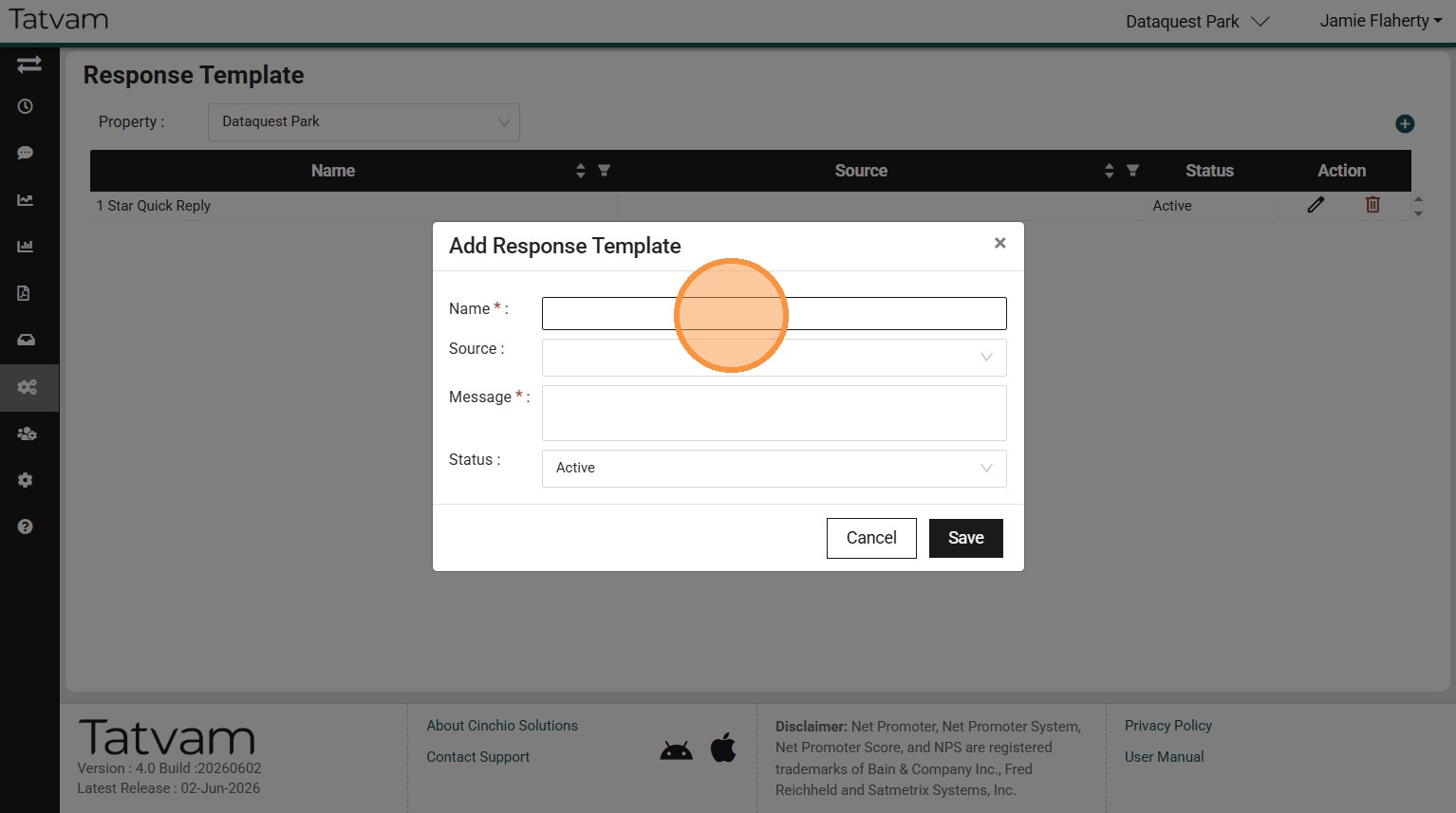
9. Click the "Name :" field and add a name for the template
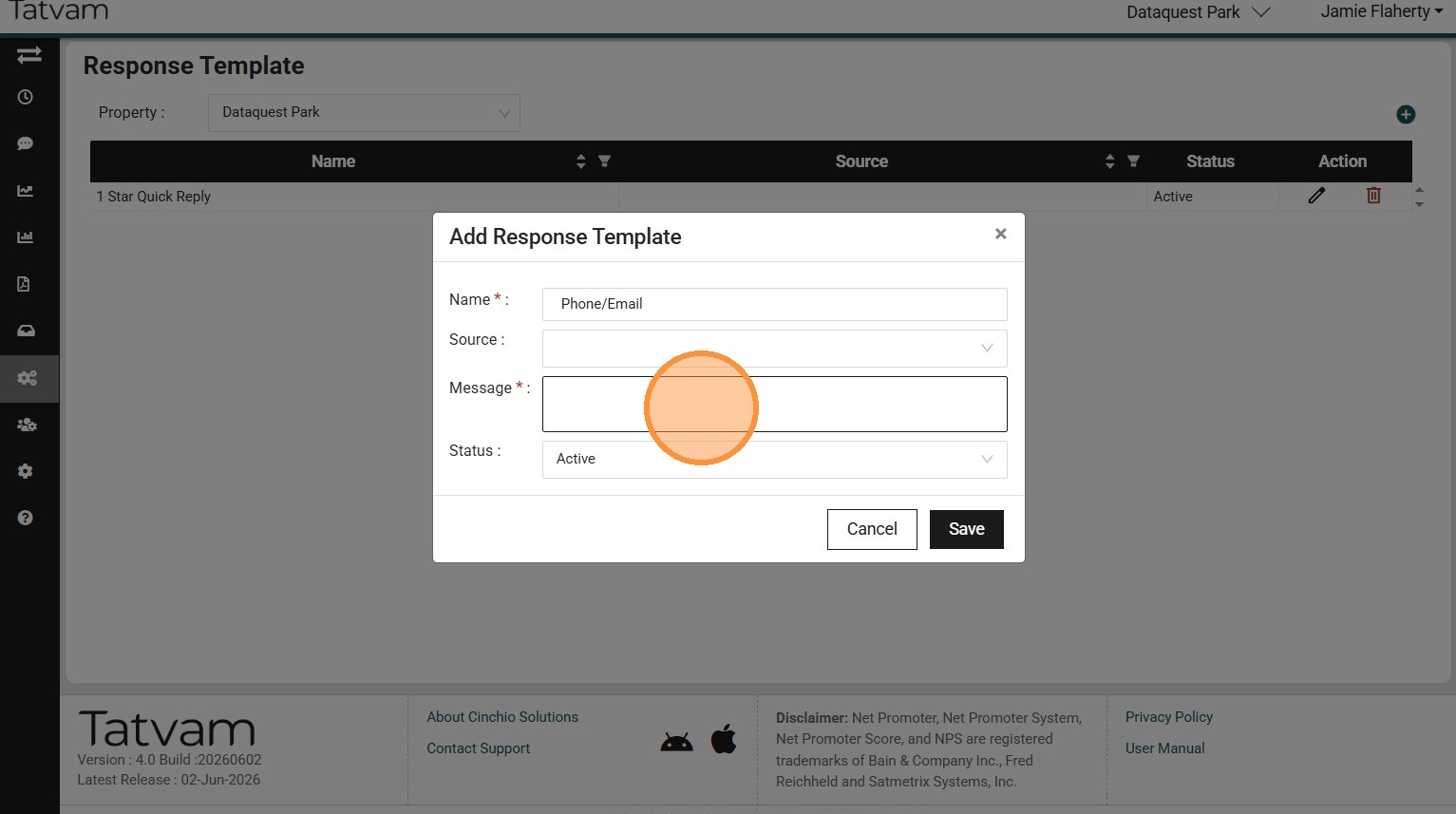
10. Click the "Message :" field and type in the response you wish to reuse
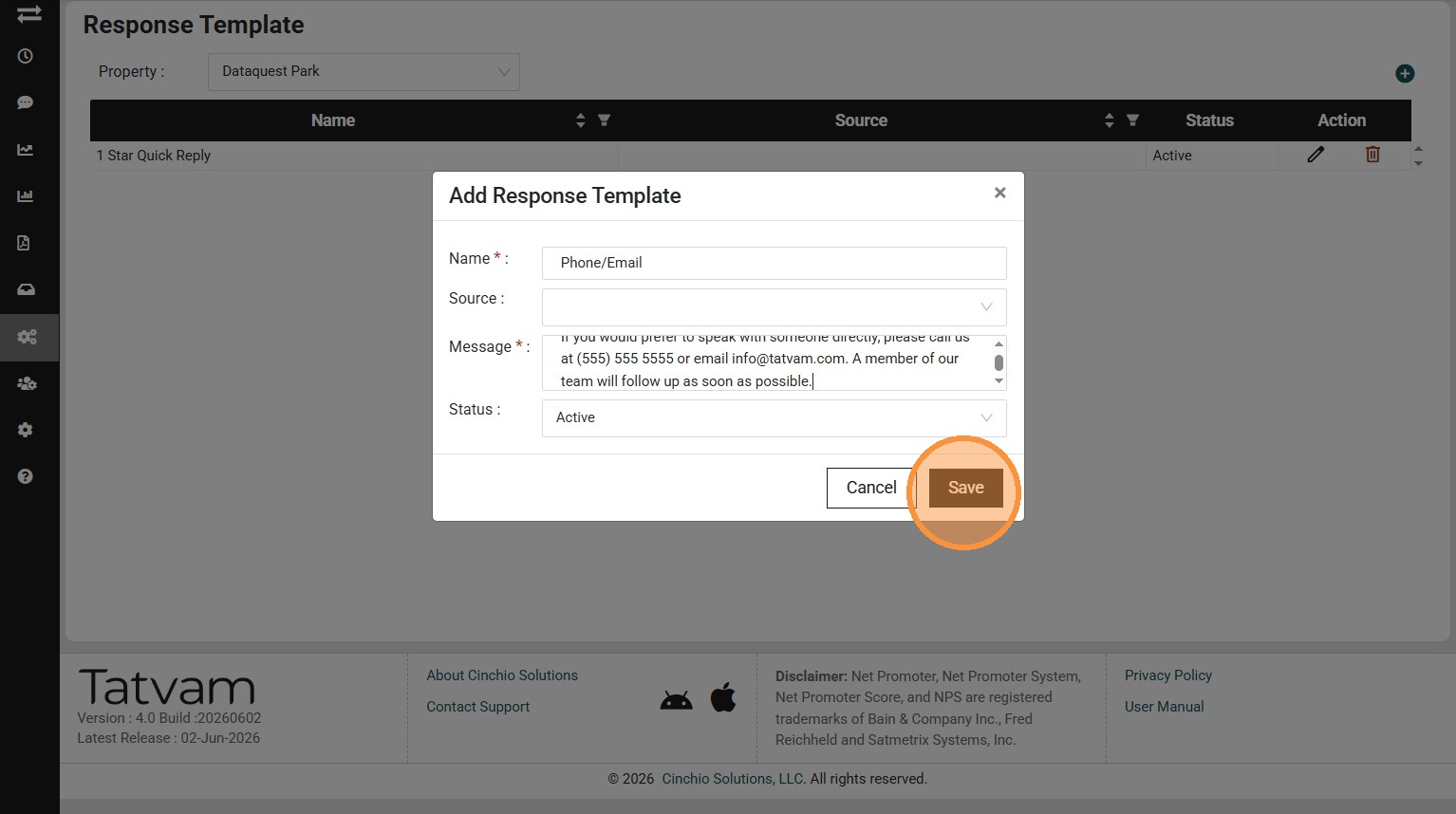
11. Click "Save"
Alert: Alert! Remember the important tip shared at the beginning of this process: response templates should support your reply, not replace personalization.
Always begin by addressing the guest’s specific feedback or concern. The template can then be used to provide a consistent conclusion.
Example: The following message may work well at the end of a response to a negative review, but it should not be posted on its own without first acknowledging the guest’s experience:
“If you would prefer to speak with someone directly, please call us at (888) 555 1212 or email info@tatvam.com. A member of our team will follow up as soon as possible.”
To Use the Teamplate
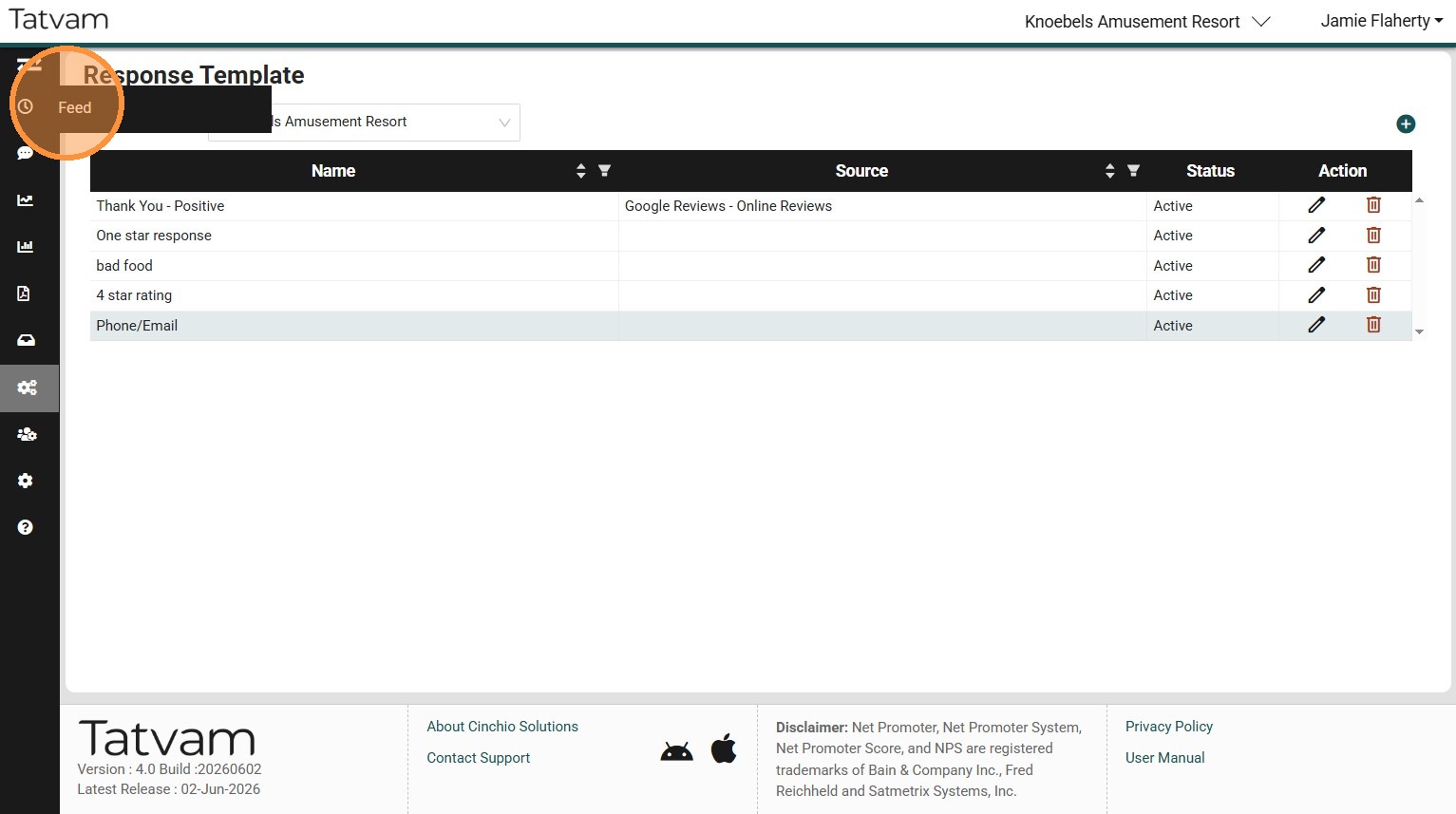
12. Click "Feed"
13. Click "Reply" to the review you wish to respond to
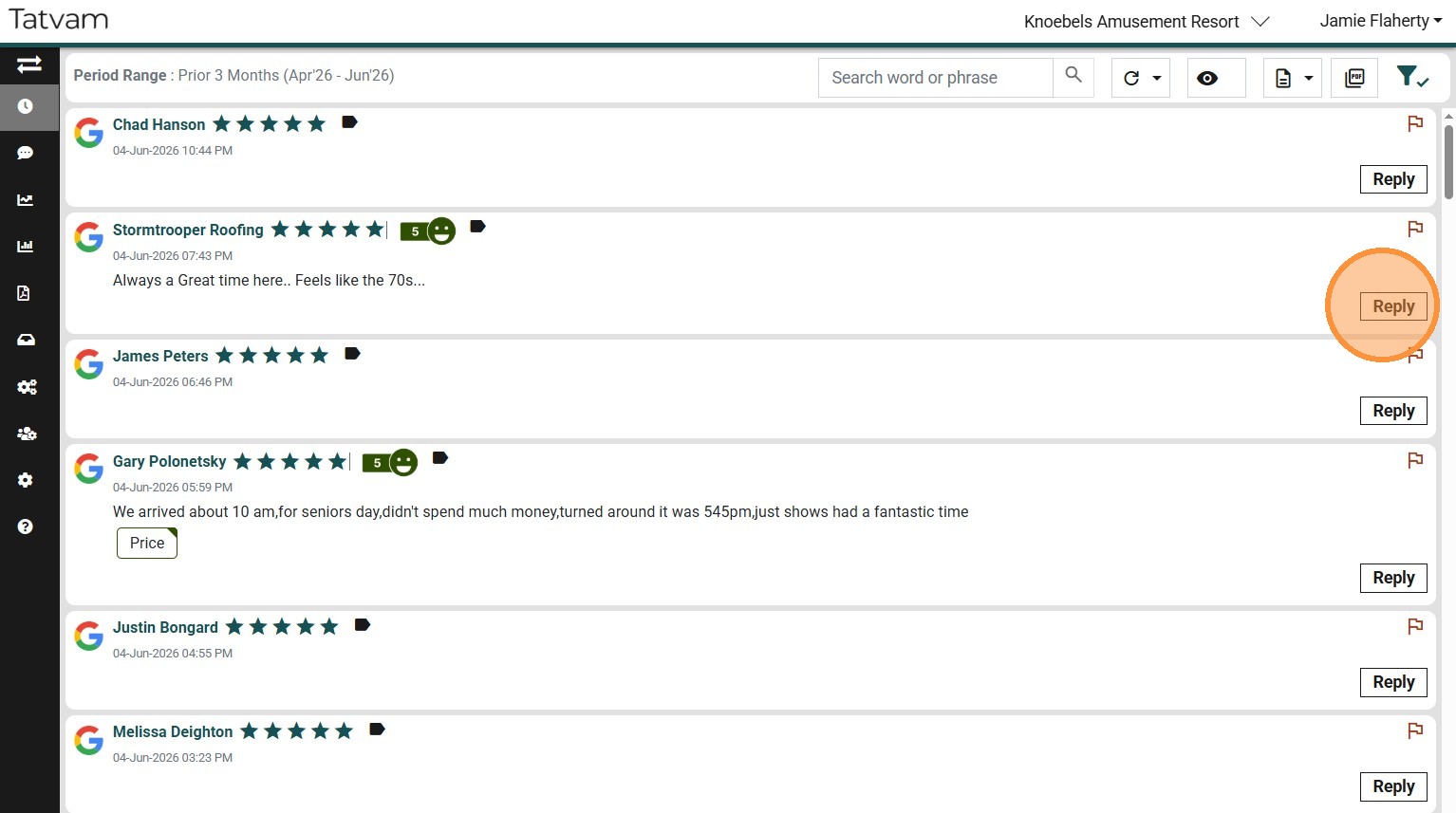
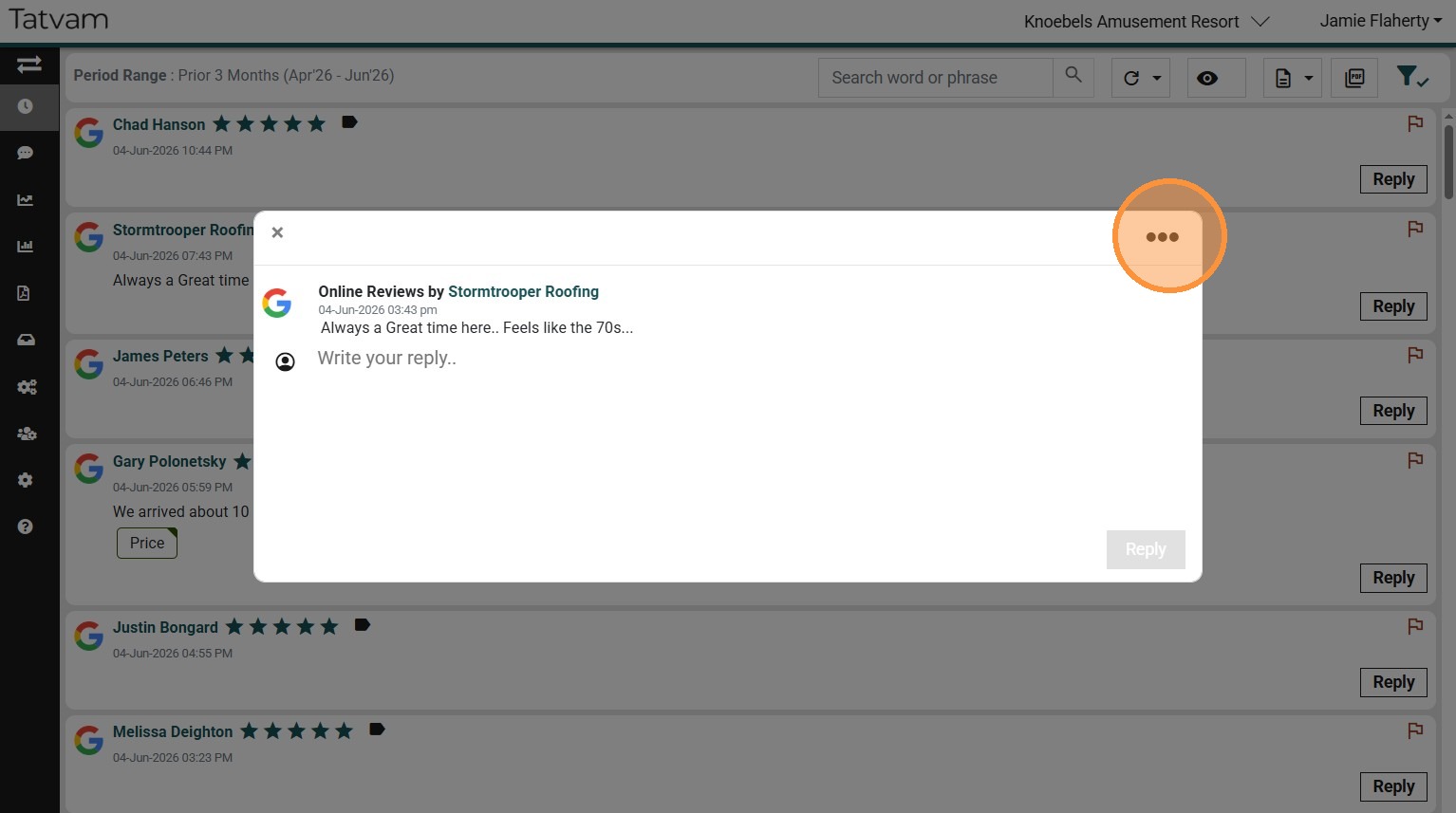
14. Click here.
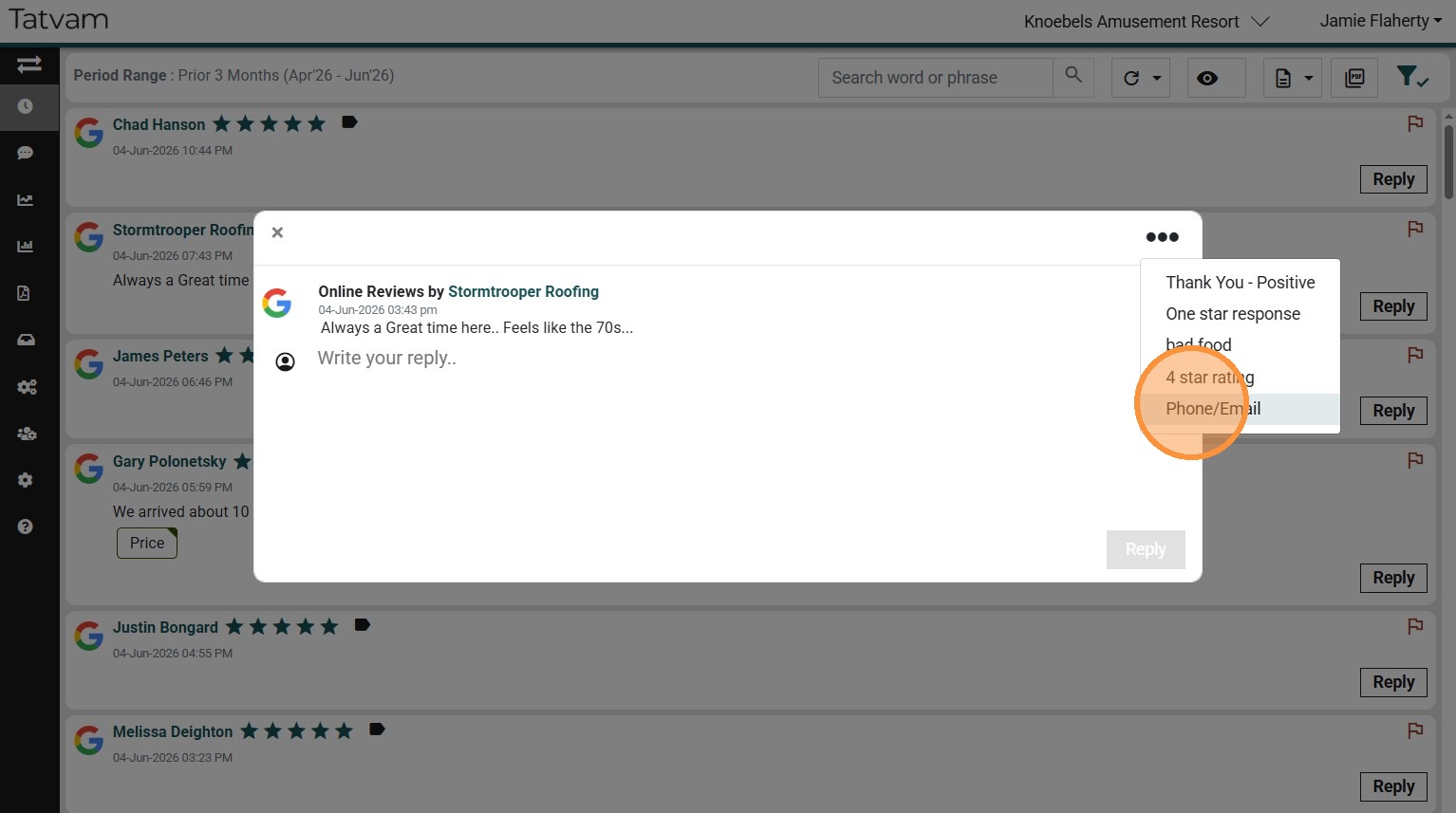
15. Click whichever Response Template you would like to use
16. Click into the message and customize your response by addressing their concern(s)
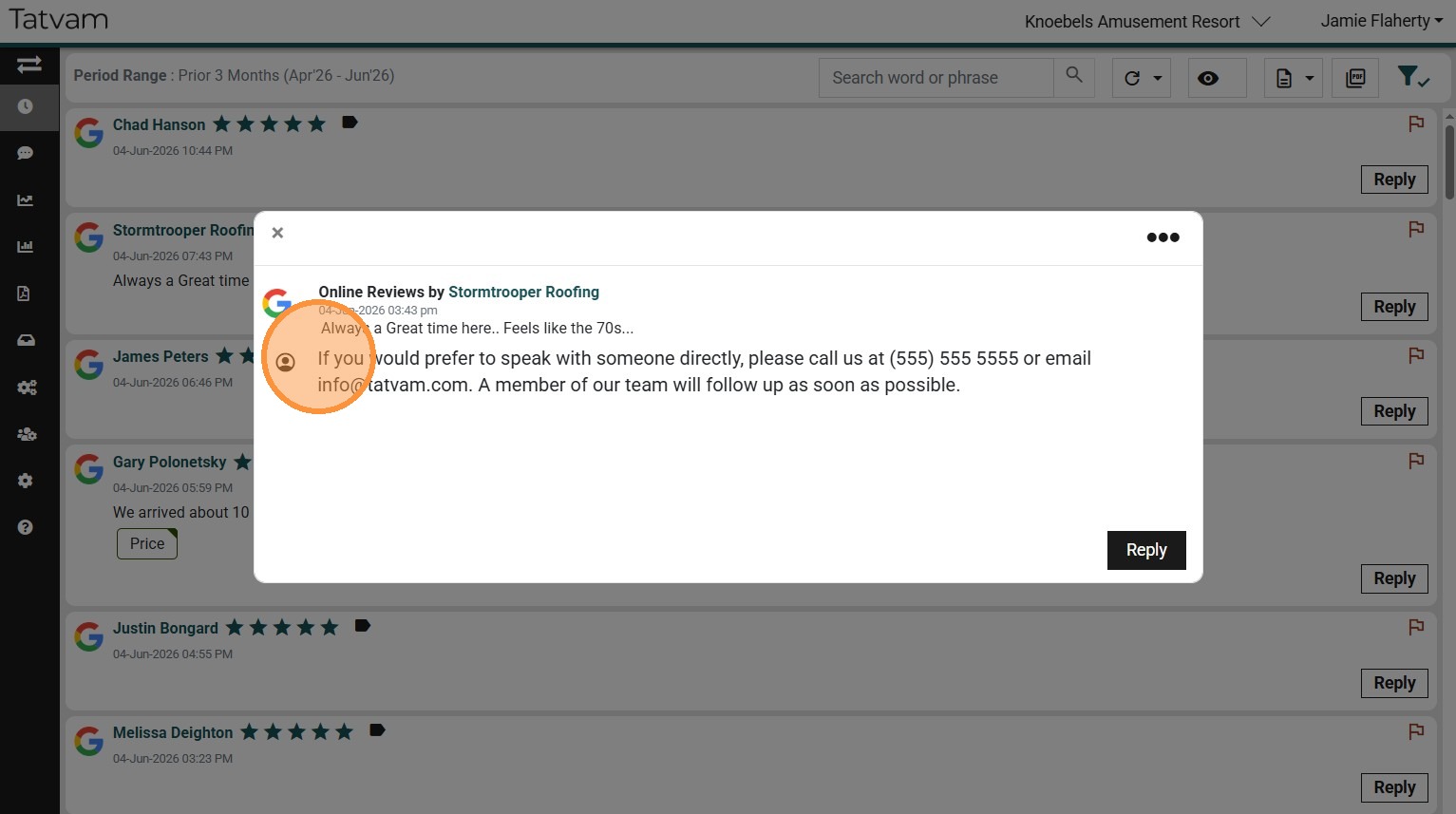
17. Click "Reply"
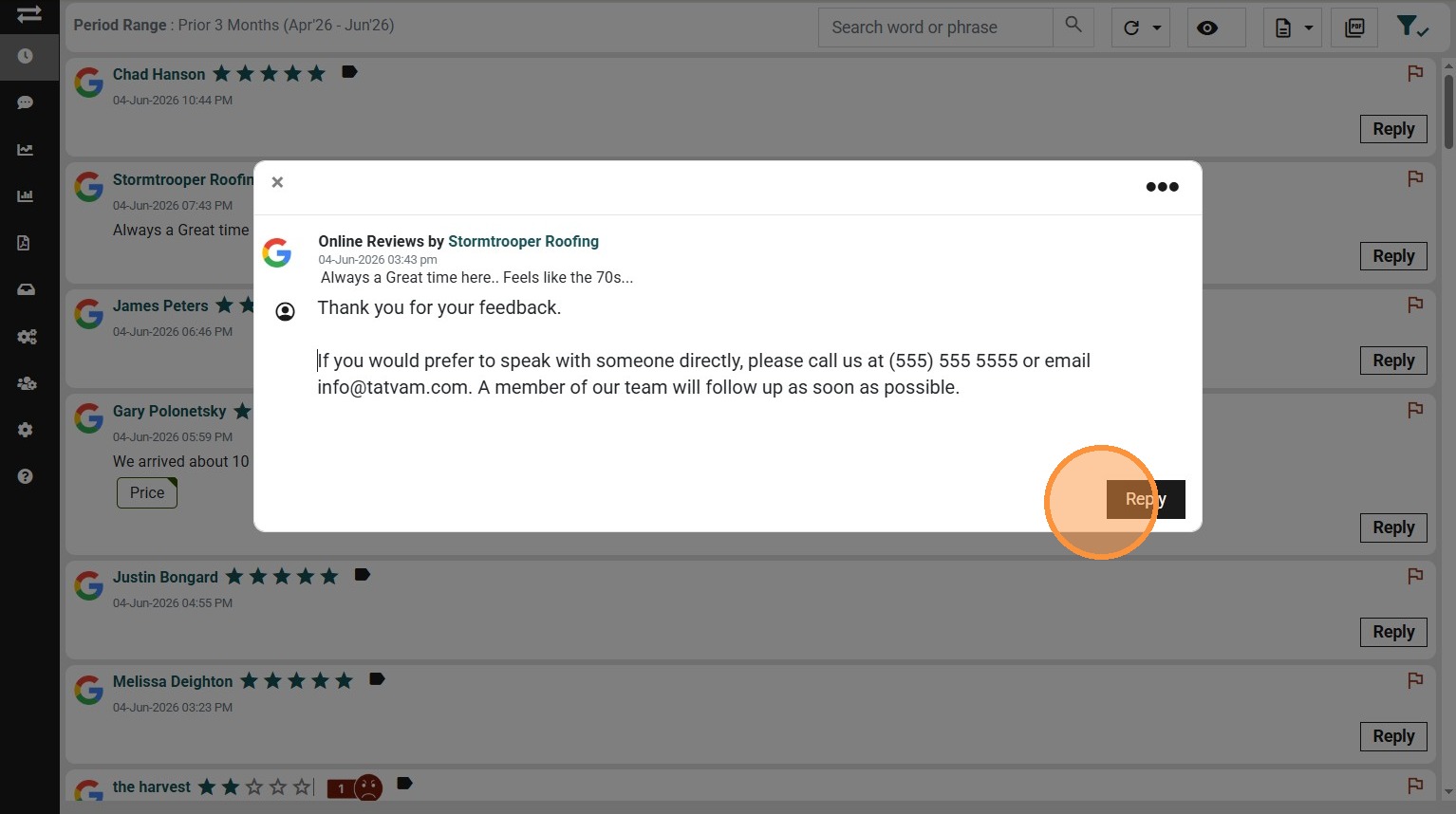
18. Congratulation! That's it, your post will make its way to the customer.
